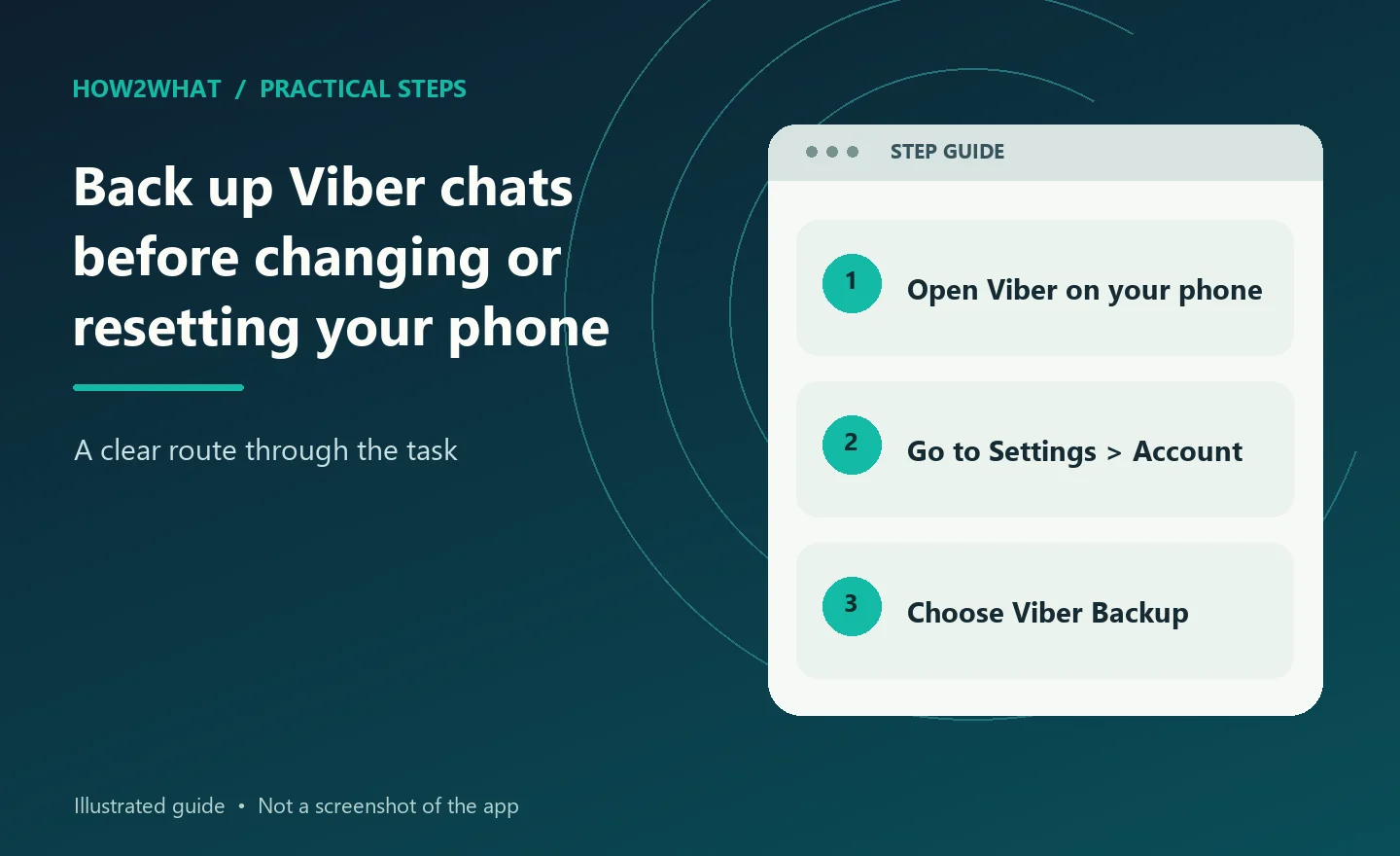
To back up your Viber conversations, open Viber on your phone, go to More → Settings → Account → Viber Backup, connect the appropriate cloud account if necessary, choose whether to include photos and videos, then select Back Up. Wait for the backup to finish before uninstalling the app, resetting your phone or activating Viber on another handset.
The essential precaution is to check where the backup was saved and which phone number and cloud account you used. Viber can only restore that history under the right conditions. In particular, you cannot restore an Android Viber backup onto an iPhone, or an iPhone backup onto Android.
What Viber actually backs up
Viber's backup system is designed primarily to protect conversation history when you reinstall the app or change phones. Depending on the options you select, the backup can include chat messages and shared photos and videos. Media matters: if you leave the photos-and-videos option off, don't assume all the pictures and clips in your conversations will be recoverable later.
Viber also retains certain account details and community memberships, but not every part of your app experience is handled through the same backup. Purchased sticker packs and Viber Out subscriptions may need a separate restore operation after your chats are restored.
The controls are on your primary phone. Viber's official support guidance says the standard chat-backup and phone-transfer functions aren't available through its desktop app or a secondary tablet. If you spend most of your time using Viber on a Windows PC, return to the phone before changing anything.
Before you begin: three details worth checking
Your phone number. Viber backups are linked to the phone number associated with the account. When restoring, you'll need to activate Viber with the same number. If you're changing both phone and number, read Viber's dedicated number-change instructions first rather than assuming a routine restore will cover both changes.
Your operating system. Android uses Google Drive for standard cloud backups; Huawei devices without Google services may use Huawei Drive. iPhones use Apple's iCloud. Viber does not support transferring chat history between Android and iOS. If you're moving from a Samsung phone to an iPhone, for example, you may be able to activate your account but should not expect the old Android conversation history to come across.
Your cloud account. Check which Google account or Apple ID is in use, and make sure you have sufficient available cloud storage. A backup saved under one account won't be available when you sign into a different account on the replacement phone.
Where possible, connect to reliable Wi-Fi and keep the phone charged. Backups containing a large amount of media can take time, and a dead battery or interrupted connection is the last thing you want immediately before a factory reset.
How to back up Viber on an Android phone
The normal Android process starts inside Viber, not in the Google Drive app.
- Open Rakuten Viber on your Android phone and tap More.
- Select Settings, then Account.
- Open Viber Backup.
- If the page says Viber isn't connected to Google Drive, select its Settings option and choose the Google account you want to use. On a supported Huawei phone without Google services, the available storage route may be Huawei Drive instead.
- Decide whether to include photos and videos. Make that choice deliberately, particularly if shared media is important to you.
- Tap Back Up or Back Up Now, depending on the screen shown, and let the operation finish.
Once you've completed a manual backup, check the Viber Backup screen for its completion information. The precise wording can change between app versions, so don't assume the operation worked merely because you pressed the button.
If you intend to replace your phone, avoid creating or receiving lots of important new messages after the final backup without making another one. A backup records a particular point in time; it isn't a permanently live copy of every conversation.
You can also enable automatic backups from the same screen. Viber offers daily, weekly and monthly intervals. Choose based on how much conversation history you'd be prepared to lose if your phone stopped working unexpectedly. Daily is the most protective of those scheduled choices, but a fresh manual backup is still sensible immediately before a planned phone change.
How to back up Viber on an iPhone
On iPhone, check iCloud access first. This is especially important if you've signed out of your usual Apple account or disabled iCloud access for some apps.
- Open the iPhone's Settings app, tap your Apple ID at the top and open iCloud.
- Check that Viber is enabled under the apps using iCloud. Depending on your iOS version, you may need to open Show All to find it.
- Return to Viber, tap More, then Settings → Account → Viber Backup.
- Select whether your backup should include photos and videos.
- Choose Back Up to start a fresh cloud backup.
- Wait for completion and inspect the displayed backup information before uninstalling Viber or switching devices.
Viber's official instructions also offer automatic daily, weekly or monthly backups. Turn this on if you want routine protection rather than relying entirely on remembering to do it yourself.
An iPhone's general iCloud device backup is not a substitute for confirming that Viber itself has a usable conversation backup. Use the in-app Viber Backup screen to check the relevant setting and run the backup.
How to restore Viber chats on a new phone
Do not rush this part. Viber activation on a new phone affects the existing installation, and a restore can replace conversations you have since received.
Before setting up the new phone, finish the backup on the old one. Keep the old phone available and charged until you're confident the transfer or restore has worked.
On the new phone, install Viber from the official app store and activate it with the same phone number. Sign into the same Google Drive account or Apple ID that held your backup. If Viber offers to restore your history during setup, follow the restore prompt.
If you skipped that prompt, Viber documents a manual route: More → Settings → Account → Viber Backup → Restore → Restore Now. Confirm carefully before proceeding, particularly if you've already been using Viber on the new phone.
The crucial warning is that restoring an older backup rolls the chat list back to the state captured at that time. Viber says messages received between the backup and the restore won't be saved by that restore operation. That's why it's better to make the last backup as close as possible to the changeover.
After the chat history returns, allow time for any included photos and videos to finish restoring. Viber may continue retrieving media in the background. Don't conclude that an older photograph is permanently missing just because its preview hasn't appeared immediately.
Can you transfer Viber without a cloud backup?
For some same-platform phone changes, yes. Viber also supports a direct Wi-Fi transfer between an old and a new phone. According to Viber, both handsets must use the same operating-system family, have version 25.0 or later, and have Wi-Fi and Bluetooth enabled.
The basic sequence is to activate Viber on the new phone using your existing number, accept the transfer prompt on both devices, and use the new phone to scan the QR code shown on the old one. Keep both phones close together and connected until the transfer is complete.
This can be convenient when you have both phones in front of you. However, it is not an Android-to-iPhone migration method. The same platform restriction still applies.
Keep cloud backups even if you plan a direct transfer: they help if the old phone is lost or damaged.
Problems that can stop a backup or restore
Viber can't see a cloud account. Check the phone's sign-in settings and confirm that Viber is connected to the intended Google, Huawei or Apple account. On iPhone, inspect Viber's iCloud permission. Retry from the in-app backup screen after correcting the account.
There isn't enough storage. Remove unnecessary material or free sufficient room in the appropriate cloud account before repeating the backup. If you opt to leave media out, understand that you are reducing what you can restore later.
The backup seems stuck. Use a stable connection, leave the phone powered and give the operation time. If a long-running backup repeatedly fails, check for an app update and consult Viber's current support instructions rather than uninstalling the app as a first troubleshooting step.
The new phone offers no restore. Confirm that you activated the correct phone number and signed into the matching cloud account. Check that you're staying on the same platform. A backup made on Android will not appear as a usable iOS conversation backup.
Photos or videos are missing at first. If you selected media in the original backup, give the restoration time to finish. If you didn't select media, a chat-text restore cannot create the missing attachments.
You have two-step verification enabled. Be ready to enter your Viber PIN when the app asks for it. Restore procedures can require verification beyond the normal phone-number activation.
If the old phone still works, keep it untouched while you investigate. An unnecessary reset or deactivation can remove your last chance to create a fresh backup.
Uninstalling Viber is not the same as deactivating it
These actions have different consequences. Uninstalling removes the app from the phone, whereas deactivating closes the Viber account and affects its associated devices and data. Viber also warns that an account may be automatically deactivated if the app is not reinstalled on the primary phone within two weeks, so do not rely on uninstalling as a long-term way to preserve your account.
Viber's support information gives particular warnings about deactivation on iPhone: you should not assume you'll be able to restore the account afterward in the same way you could after a routine reinstall. If all you want is to move phones or solve a temporary fault, don't use account deactivation casually.
Likewise, removing the app doesn't itself cancel Viber Out subscriptions. Subscription management is a separate issue. Check your existing subscriptions through their original billing provider if you intend to cancel them; don't treat removing Viber as cancellation.
Check the backup first, then leave your old installation intact until the replacement works.
Questions about Viber backups
Does Viber back up automatically?
It can, if you've enabled automatic backups in More → Settings → Account → Viber Backup. You can choose daily, weekly or monthly backups. Check that the setting is active and that backups are completing successfully.
Can I back up Viber from my Windows laptop?
No, not through the standard Viber chat-backup function. Viber directs users to their primary phone for backups and phone transfers. The desktop installation isn't a replacement for a phone-created backup.
Can I move Viber chats from Android to an iPhone?
No. Viber states that its chat history is tied to the operating-system platform. Changing between Android and iOS does not preserve the existing chat history through its normal backup and transfer methods.
Will restoring my backup erase newer conversations?
A restore returns the chat list to the state recorded in the backup. Messages received after that backup and before the restore may therefore be lost from the restored history. Make a fresh backup before migrating whenever possible.
Is it enough just to sign in to Google Drive or iCloud?
No. You also need to confirm that Viber is configured to use the intended account, that a backup has actually completed and that you'll restore using the same number and cloud account on a compatible device.