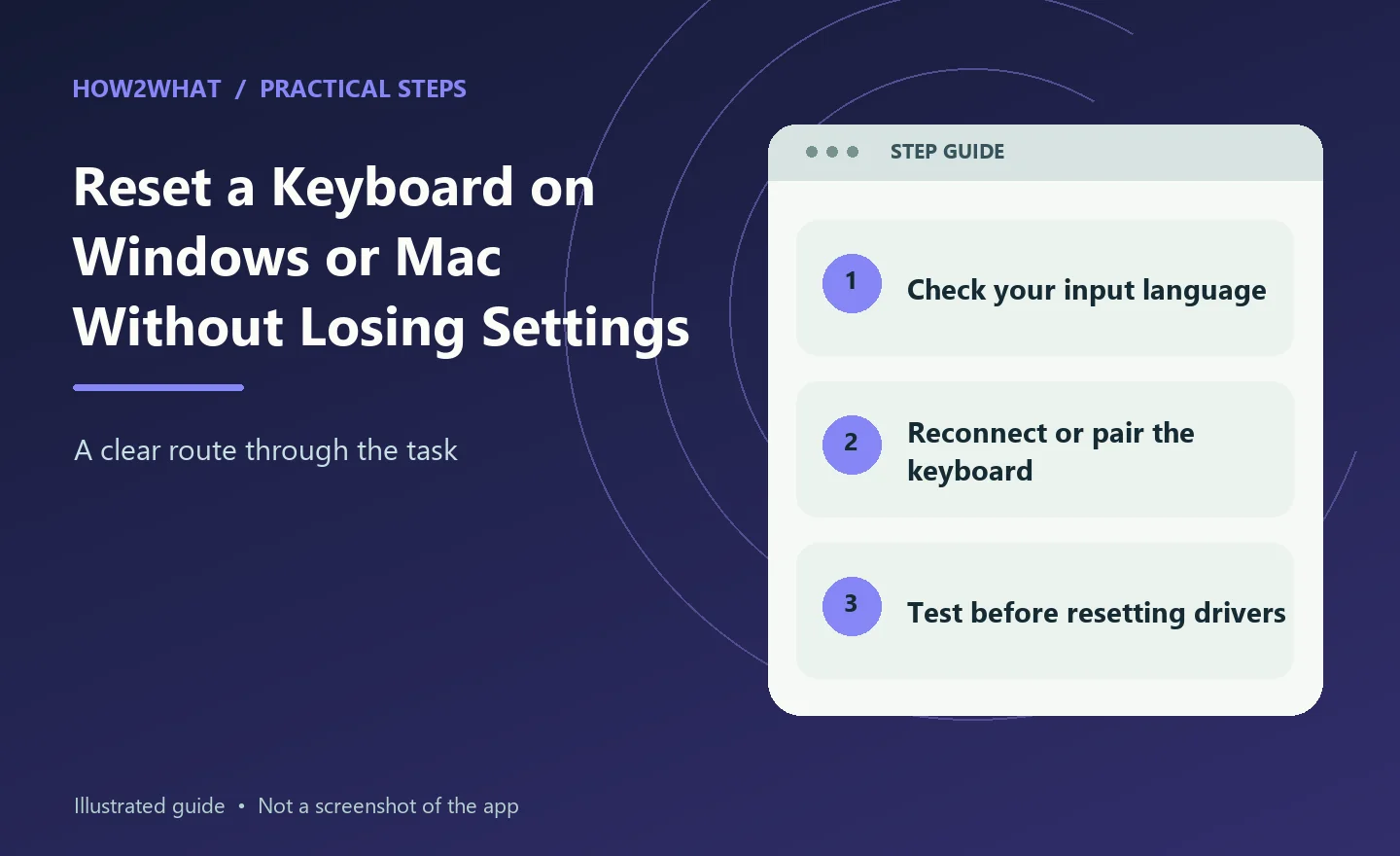
There is no single universal "reset keyboard" button because the right fix depends on what has gone wrong. A laptop keyboard typing the wrong symbols, a Bluetooth keyboard that will not reconnect and a mechanical gaming keyboard with remapped keys are three different problems. Start by identifying whether the fault is caused by the operating system, the connection, the keyboard layout or the keyboard's own onboard settings. That avoids wiping settings you did not need to change.
Start with the simplest check
Restart the computer or phone first. A temporary driver or Bluetooth problem can disappear after a normal restart. If the keyboard is wired, unplug it and reconnect it to another USB port. If it is wireless, check the battery or charge level. Replace batteries if necessary. Test the keyboard in more than one app. If one key behaves incorrectly only inside a particular program, the program's shortcut or input settings may be the cause rather than the keyboard.
If the keyboard types the wrong characters
The most common cause is an accidental keyboard-layout change. On Windows, check the language/input indicator on the taskbar. Switching between UK and US layouts changes the location and output of several punctuation keys. Open Settings > Time & language > Language & region and check the installed keyboard layouts for your preferred language. Remove layouts you never use if you keep switching into them by accident.
On a Mac, open System Settings > Keyboard > Text Input > Edit to review the input sources installed for your macOS version. Menu wording varies, so search System Settings for 'Input Sources' if needed. A full keyboard reset will not help if the computer is simply using the wrong layout.
If Windows keyboard settings are wrong
Windows does not have one master reset that returns every keyboard option to a universal default, but you can correct the main settings individually.
Check:
- keyboard language and layout;
- Sticky Keys;
- Filter Keys;
- Toggle Keys;
- key-repeat settings;
- remapping utilities;
- manufacturer keyboard software.
Open Settings > Accessibility > Keyboard to review accessibility features. Filter Keys in particular can make a working keyboard feel unresponsive by changing how short or repeated key presses are handled. If you use PowerToys Keyboard Manager or third-party remapping software, disable those mappings temporarily.
Reinstall the keyboard in Windows
If the keyboard behaves incorrectly across the whole system, reinstalling the device can refresh the Windows driver. Right-click Start and open Device Manager. Expand Keyboards. Right-click the relevant keyboard and choose the option to uninstall the device. Then restart Windows. Windows normally redetects a standard keyboard and reinstalls the appropriate driver automatically. Do not remove random Human Interface Devices if you are not sure what they control. On laptops, some entries handle hotkeys, touchpads or other built-in components.
Reset a Bluetooth keyboard connection
If a Bluetooth keyboard will not pair reliably, remove the saved pairing and create it again. On Windows, open Settings > Bluetooth & devices, locate the keyboard and remove it. Switch the keyboard off and back on, put it into pairing mode and add it again. On a Mac, open the Bluetooth section of System Settings, forget the keyboard and pair it again. If the keyboard can remember several devices, make sure it is on the correct device channel. Multi-device keyboards often appear "dead" simply because they are currently switched to slot 2 or 3.
Reset an Apple Magic Keyboard connection
For a Magic Keyboard used with a Mac, connect it with its cable if Bluetooth pairing is unreliable. Switch the keyboard off and on. Remove and re-add the Bluetooth connection if necessary. Apple keyboards do not normally need a generic factory reset for ordinary pairing faults. Rebuilding the connection is usually the useful step. If Touch ID on a Magic Keyboard is involved, compatibility and secure pairing requirements depend on the Mac model, so follow Apple's instructions rather than random key combinations from forums.
Reset a mechanical or gaming keyboard
Many mechanical and gaming keyboards do have onboard factory-reset shortcuts, but the key combination is manufacturer-specific. Common examples found across the industry include holding a function key while reconnecting the USB cable, or holding several keys for a few seconds. Those examples are not universal. Check the manual or support page for the exact keyboard model.
A genuine hardware reset can erase:
- custom key mappings;
- macros;
- lighting profiles;
- onboard profiles;
- wireless pairings.
Export or record settings first if the software allows it.
If Ctrl, Shift, Alt or Windows keys seem stuck
First tap each modifier key several times. Then check whether Sticky Keys or another accessibility feature has been enabled. Inspect the keycap for debris or mechanical binding. If the key is physically sticking, shut the device down and clean the keyboard using the method suitable for that keyboard. Do not pour cleaning liquid under the key. An input tester can help show whether the system thinks a modifier key is being held continuously.
If only one key is wrong
Do not reset the entire keyboard yet. Test the key in a plain text editor. Check whether software has remapped it. If possible, connect the keyboard to another computer. If the same key fails on two devices, the problem is probably inside the keyboard. On a hot-swappable mechanical keyboard, the switch may be replaceable. On a laptop, repair is more model-specific and can involve the key mechanism, membrane, keyboard assembly or mainboard connection.
If the keyboard stopped after an update
Restart fully rather than only closing the laptop lid. Check the computer manufacturer's support page for chipset, hotkey or keyboard-related updates. For an external keyboard, test another USB port and another computer. Avoid downloading "keyboard driver updater" utilities from random websites. Standard USB keyboards generally use built-in operating-system drivers. If the issue began immediately after installing keyboard software, uninstall or disable that software before performing a hardware reset.
Laptop keyboards need extra care
A built-in laptop keyboard cannot simply be unplugged and replaced during troubleshooting. If an external USB keyboard works normally but the built-in keyboard does not, the issue is likely limited to the laptop keyboard hardware, its ribbon connection, firmware or related drivers. Liquid spills require immediate attention. Power the laptop down and follow the manufacturer's advice; repeatedly testing wet keys can make damage worse. If several keys fail in a neat row or cluster, that often points to a hardware matrix or connection problem rather than a Windows setting.
Confirm the fix before changing more settings
Open a plain text editor and type a short sentence containing letters, numbers, punctuation and symbols such as @, £ and quotation marks. That quickly shows whether the chosen UK or US keyboard layout matches the physical keys. Test a shortcut such as Ctrl + C in an ordinary application, then try the keyboard after a full restart. If the original fault has disappeared, stop troubleshooting rather than uninstalling more drivers. Record any custom mappings you intentionally use so you can put them back without guessing.
Sources checked: support.microsoft.com, support.microsoft.com, Apple Support: Mac keyboard input sources.