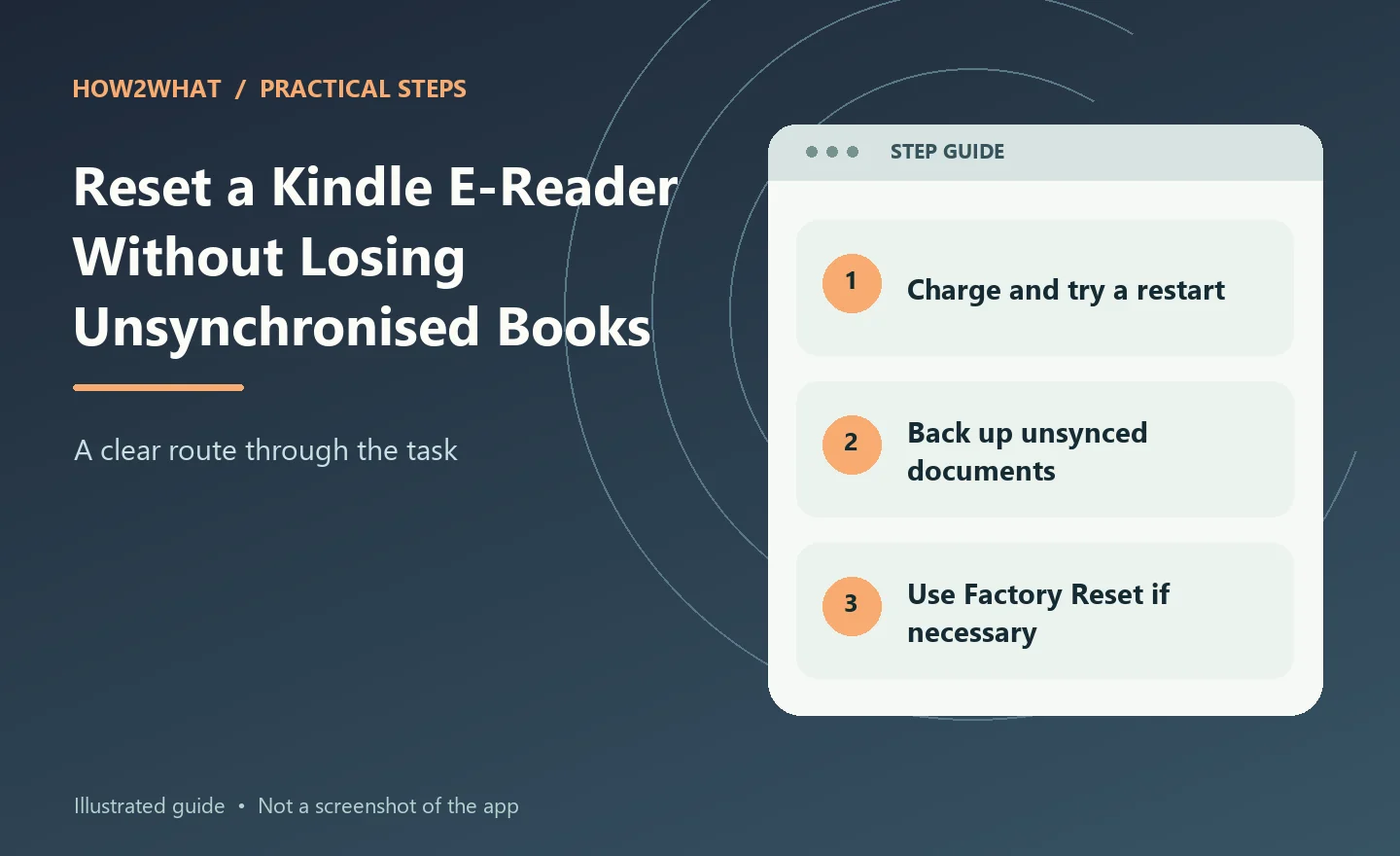
A Kindle that is frozen or behaving strangely usually needs a restart, not a factory reset. The two actions are very different. A restart reboots the Kindle and keeps your books, account and settings. A factory reset removes personal data, downloaded content and device settings, deregisters the Kindle from your Amazon account and returns it to the initial setup state. Use the factory-reset option when you are selling or giving away the Kindle, when Amazon support recommends it, or when ordinary troubleshooting has failed.
Restart a Kindle first
If the Kindle is responding, open the device menu and choose the restart option from Settings or Device Options where available. If the screen is frozen, press and hold the power button until the Kindle restarts. The exact hold time can vary by model, so if nothing happens, check Amazon's instructions for your Kindle generation. A normal restart keeps the account registration and the books in your library.
Give the Kindle time to boot fully before deciding that the fault remains.
Charge it before troubleshooting
A very low Kindle battery can imitate a more serious fault. Connect it to a known-good charger and cable and leave it charging. If the Kindle has been completely flat for a long time, the screen may not change immediately. Check the charging indicator if the model has one. Try another cable and USB power source if the device does not appear to charge. Do not factory-reset a Kindle merely because a faulty cable left it without enough power to start properly.
What a factory reset erases
Amazon states that a factory reset returns the Kindle to its original factory settings. It removes personal data, downloaded content and content that has not been synchronised. It also deregisters the Kindle from your Amazon account. Books purchased from Amazon normally remain associated with your account and can be downloaded again after you register the device, but locally transferred documents and unsynchronised content may not.
Back up anything that exists only on the Kindle before resetting.
Sync before resetting
If the Kindle is still usable, connect it to Wi-Fi and run a sync. That gives reading progress, annotations and supported cloud data the best chance to update before the device is erased. Do not assume every sideloaded document is stored by Amazon. If you copied personal files to the Kindle by USB, connect it to a computer and copy anything important off the device before resetting.
How to factory-reset a Kindle
Amazon's current general process is:
- Go to the Home screen.
- Swipe down to open Quick Actions, or open the menu.
- Select Settings or All Settings.
- Open Device Options. On some older Kindles, the reset command may be inside a menu instead.
- Select Factory Reset.
- Confirm when prompted.
The Kindle erases its local information, restarts and returns to setup. Menu names differ slightly between Kindle generations, so use the closest equivalent rather than assuming a screenshot from an old model must match exactly.
After the factory reset
Connect to Wi-Fi and register the Kindle to the Amazon account you want to use. Books associated with that account can be downloaded again. Some preferences and reading information may return after syncing, but locally stored files that were not backed up will not. If you reset because the Kindle was malfunctioning, test the clean device before loading a large number of personal documents or changing lots of settings.
Resetting before selling or giving it away
A factory reset is appropriate before handing the Kindle to another person. Sync and back up anything you need first. Run Factory Reset and wait until the Kindle reaches its welcome/setup screen. Do not register it to your Amazon account again afterwards. If you are trading the device in, follow the retailer's or Amazon's trade-in instructions as well. A reset protects the local data on the Kindle, but it does not mean you should share the old device while it is still logged into your Amazon account.
If the Kindle is frozen on the tree screen
A Kindle that remains on the startup tree for a long time may be stuck during boot. Charge it first. Then perform the supported forced restart for the model by holding the power button long enough for the device to reboot. If it repeatedly returns to the same stuck screen, factory resetting may not be available through the normal menus because the operating system is not loading.
At that point, use Amazon support instructions for the exact model rather than experimenting with unofficial files or hidden recovery menus.
If the Kindle will not connect to Wi-Fi
Do not factory-reset immediately. Restart the Kindle and restart the router. Forget the Wi-Fi network on the Kindle, then reconnect and enter the password again. Check whether another device can use the same Wi-Fi. Move closer to the router. If the Kindle is old, also check whether it supports the Wi-Fi band and security settings used by the router. A reset cannot make unsupported Wi-Fi hardware compatible with a newer network configuration.
If books are missing
Sync the Kindle. Check that it is registered to the correct Amazon account. Use the Library filters to make sure you are not viewing only downloaded books. A book that appears in the cloud library but is not downloaded can simply be downloaded again. Factory-resetting is unlikely to help if the real problem is that the book was purchased on a different Amazon account.
If the touchscreen is unresponsive
Clean and dry the screen. Remove a badly fitted case or screen protector temporarily if it could be pressing the display. Restart the Kindle. If one part of the screen remains unresponsive after rebooting, the digitiser or display hardware may be faulty. A factory reset is worth trying only after backups if software remains a plausible cause.
Kindle versus Kindle Fire
Amazon Fire tablets and Kindle e-readers are different product families. A Kindle e-reader uses the Kindle software and e-ink display. A Fire tablet uses Fire OS and has a different settings structure and reset process. Make sure the instructions you follow are for the actual device. Searching for "reset Kindle" often brings up Fire-tablet instructions that do not match an e-reader.
A sensible troubleshooting order
- Charge the Kindle.
- Restart it.
- Sync it.
- Check Wi-Fi and account registration.
- Back up local personal files.
- Factory-reset only if the fault remains or you are handing the device to someone else.
- Test the clean Kindle.
- Contact Amazon support if the same fault survives the reset.
A factory reset is useful because it creates a clean starting point, but it should be the final software step rather than the first button you press.
Source checked: Amazon UK: Factory Reset Your Kindle E-Reader.