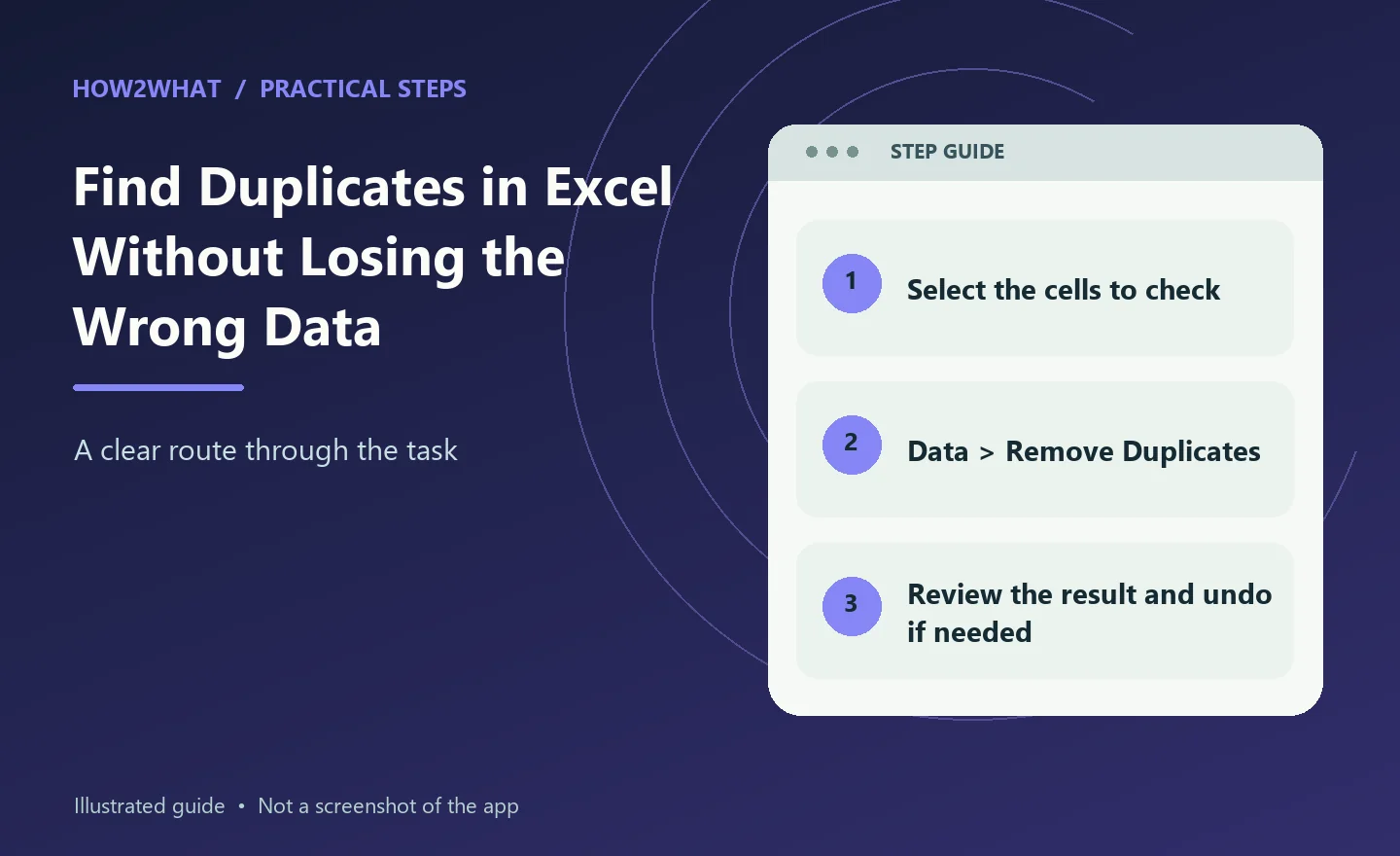
Excel can show you repeated entries without changing the worksheet, but its Remove Duplicates command deletes data from the selected range. The safest approach is to highlight or filter the records first, decide what counts as a duplicate, and only then remove rows if that is genuinely what you need.
Select the cells you want to inspect, then choose Home > Conditional Formatting > Highlight Cells Rules > Duplicate Values. Excel highlights repeated values without deleting them. If you need to remove repeats, copy the original data first, select the range, choose Data > Remove Duplicates, and select the columns that define a duplicate. Excel keeps the first occurrence and removes later matching rows from the selected range.
Highlight duplicates so you can inspect them
Click and drag over the values you want to compare. If the list has a heading, include the data cells and heading only when Excel identifies the range correctly; selecting just the records, such as A2:A400, makes the result easier to interpret. On the Windows desktop app, open Home > Conditional Formatting > Highlight Cells Rules > Duplicate Values. Choose a format in the dialogue box and select OK.
This is the best first move for a customer list, stock sheet or imported report because it leaves the data intact. Read the highlighted records in context before deciding that they are errors. Two people can share a name, two orders can legitimately have the same amount, and a repeated product code may represent separate transactions.
Decide whether one column or a whole row is the key
A repeated value in one column is not automatically a repeated record. For example, the same surname may occur on several genuine customer rows. If an order is defined by order number, compare that column. If a record is defined by a combination such as customer email and order date, those columns together form the duplicate key.
When the sheet has several related columns, select the complete table before using Remove Duplicates. In its column list, tick the fields that define sameness. If you select Order number and Date but leave Notes unticked, Excel can treat two rows as duplicates when those selected fields match, then remove the entire later row, including its different note.
Remove duplicate rows only after making a copy
Save a copy of the workbook or copy the original range to another worksheet. Select a cell in the table or select the range, then open Data > Remove Duplicates. In the Columns list, select the fields that should match. Use Select All when every column must be identical; clear it and choose a smaller set when only particular fields define a duplicate. Select OK and read the count in Excel's confirmation message.
The command keeps the first occurrence it encounters and deletes later matching records within the selected range. It does not rearrange unrelated cells outside that range. If the result is wrong, use Undo immediately, restore the copy, or reopen the saved original rather than trying to reconstruct deleted rows by hand.
Use a formula when you need a repeatable flag
For a simple list in A2:A400, enter =COUNTIF($A$2:$A$400,A2)>1 in a helper column and fill it down. TRUE marks a value that occurs more than once in the range. COUNTIF counts cells that meet a criterion, so the absolute range keeps the comparison list fixed while A2 changes for each row.
A helper column is useful when you need to filter, sort or review the flagged rows before editing the source. It also makes the rule visible to someone else working on the workbook. Adjust the range and cell reference to match your sheet, and exclude a heading from the counted range.
How to find duplicates without deleting anything
Conditional formatting is a visual search, not a cleanup command. After selecting the cells, the Duplicate Values rule colours every value that occurs more than once in that selection. You can then sort or filter the surrounding table and inspect each match alongside its date, owner, reference or status.
If you want a separate list of distinct records rather than coloured cells, use Data > Advanced in the Sort & Filter group. Choose Filter the list, in-place to hide non-unique records temporarily, or Copy to another location to place the unique records elsewhere. Turn on Unique records only before selecting OK. This leaves the source data unchanged and is safer when you are still deciding what should be kept.
-
Highlighting shows repeated values in the selected cells.
-
An advanced filter hides or copies records; it does not erase the source.
-
Removing duplicates changes the selected range and should be treated as destructive.
What Excel means by a duplicate
Excel compares the values displayed in the selected cells, rather than simply comparing the formulas behind them. Two formulas that produce the same displayed result can therefore be treated as duplicates. Formatting can also affect the comparison: two dates that look different may be treated as different values if the underlying displayed values or formats do not match the way you expect.
Spaces and blank cells are common reasons for surprising counts. A copied email address with a trailing space may not behave like the clean version. A blank row may also affect the totals reported after a removal. Before cleaning an imported list, inspect suspicious cells and consider using a separate cleaned column with functions such as TRIM when leading or trailing spaces are the actual problem. Do not delete rows merely because Excel reports a count you have not understood.
-
Choose the fields that define the record, not automatically every visible field.
-
A repeated name, price or date may be valid when other columns differ.
-
Look for spaces, blanks and inconsistent imported values when matches seem wrong.
Finding duplicates across more than one column
Suppose a table contains Product, Supplier and Batch. If a duplicate means the same product from the same supplier in the same batch, select all three columns in Remove Duplicates. If Batch is deliberately allowed to repeat, leave it out of the key. Excel then compares the remaining selected combination and removes the whole row when that combination occurs again.
This is where accidental data loss most often happens. Selecting only Product may merge legitimate rows for different suppliers; selecting every column may fail to identify records that differ only in a note or import timestamp. Write down the definition in ordinary language first - for example, same invoice number - then select the corresponding Excel column or columns.
Troubleshooting a result that looks wrong
If no cells are highlighted, confirm that the selection includes the records and that the values really match. Check for extra spaces, different spellings, hidden characters and numbers stored as text. If only some rows disappear, review the columns ticked in the Remove Duplicates window: the comparison uses those columns, but the complete matching row is removed from the selected range.
If Remove Duplicates is unavailable or refuses to run, look for outlines or subtotals in the data. Microsoft says these must be removed before duplicate removal. A PivotTable has another limitation: Excel cannot highlight duplicates in its Values area with the duplicate-value conditional-formatting rule. Work from the source table instead, or copy the relevant results to a normal range for inspection.
On Excel for the web, select the range or click inside the table, then use Data > Remove Duplicates. The deletion behaviour is the same, so keep the backup. Menu wording and layout can vary slightly between desktop, web and Mac versions, but the distinction between highlighting, filtering and deleting remains the important part.
-
Undo is available after a removal, but a saved copy is safer.
-
Remove outlines and subtotals before attempting duplicate removal.
-
Inspect the source range rather than a PivotTable Values area when highlighting is unavailable.
Tips
-
Convert a clean, consistently headed range into an Excel table when you expect new rows to be added; then select a cell in the table before applying the duplicate check.
-
Use a helper column when another person needs to review or filter the flagged records rather than accepting an immediate deletion.
-
Keep the original order until the review is complete, because Remove Duplicates retains the first matching occurrence it encounters.
Warnings
-
Remove Duplicates permanently deletes matching data from the selected range. Copy the original first.
-
Selecting only a few columns defines the comparison, but a matching result can remove the entire row, including columns you did not tick.
-
Do not assume repeated names, prices or dates are errors without checking the rest of each record.
Sources
-
Microsoft Support: Find and remove duplicates: https://support.microsoft.com/en-us/excel/find-and-remove-duplicates
-
Microsoft Support: Filter for unique values or remove duplicate values: https://support.microsoft.com/en-us/excel/get-started/filter-for-unique-values-or-remove-duplicate-values
-
Microsoft Support: Use the COUNTIF function in Microsoft Excel: https://support.microsoft.com/en-us/excel/get-started/use-the-countif-function-in-microsoft-excel?view=Schedule