Resetting a Windows laptop reinstalls Windows and can either keep your personal files or remove everything. It is useful when Windows has become badly corrupted, when persistent software problems survive simpler troubleshooting, or when you want to prepare the laptop for a new owner. It is not the same as restarting the laptop, and it should not be the first response to every slow computer.
Before beginning, back up important files and make sure you know whether the laptop uses BitLocker or another form of device encryption.
Decide whether you actually need a reset
Try simpler fixes first if Windows still works. Restart the laptop. Install pending Windows updates. Remove software that caused the problem. Scan for malware using a reputable security tool. Free storage space if the system drive is nearly full. Check Task Manager for an obvious program using excessive CPU, memory or disk resources. If the fault began after a driver or software update, consider a rollback or System Restore where appropriate.
A full reset makes sense when these approaches have failed or when you deliberately want a clean installation state.
Back up your files
Even if you plan to choose Keep my files, make a separate backup. Copy documents, photos, project files, browser exports and anything else important to an external drive or trusted cloud storage. Check unusual locations such as Desktop, Downloads, saved-game folders and application-specific data directories. If software uses local licence files or activation codes, record them. A reset can remove installed applications even when personal files are preserved.
Make sure you have your BitLocker recovery key
Windows devices can use BitLocker or Device Encryption. Microsoft specifically warns that you may need the BitLocker recovery key during recovery operations. Before resetting, confirm where the key is stored. It may be associated with your Microsoft account, work or school account, or another location chosen when encryption was enabled. Do not discover halfway through recovery that the laptop is asking for a key you have never recorded.
Open Reset this PC
On Windows 11, open:
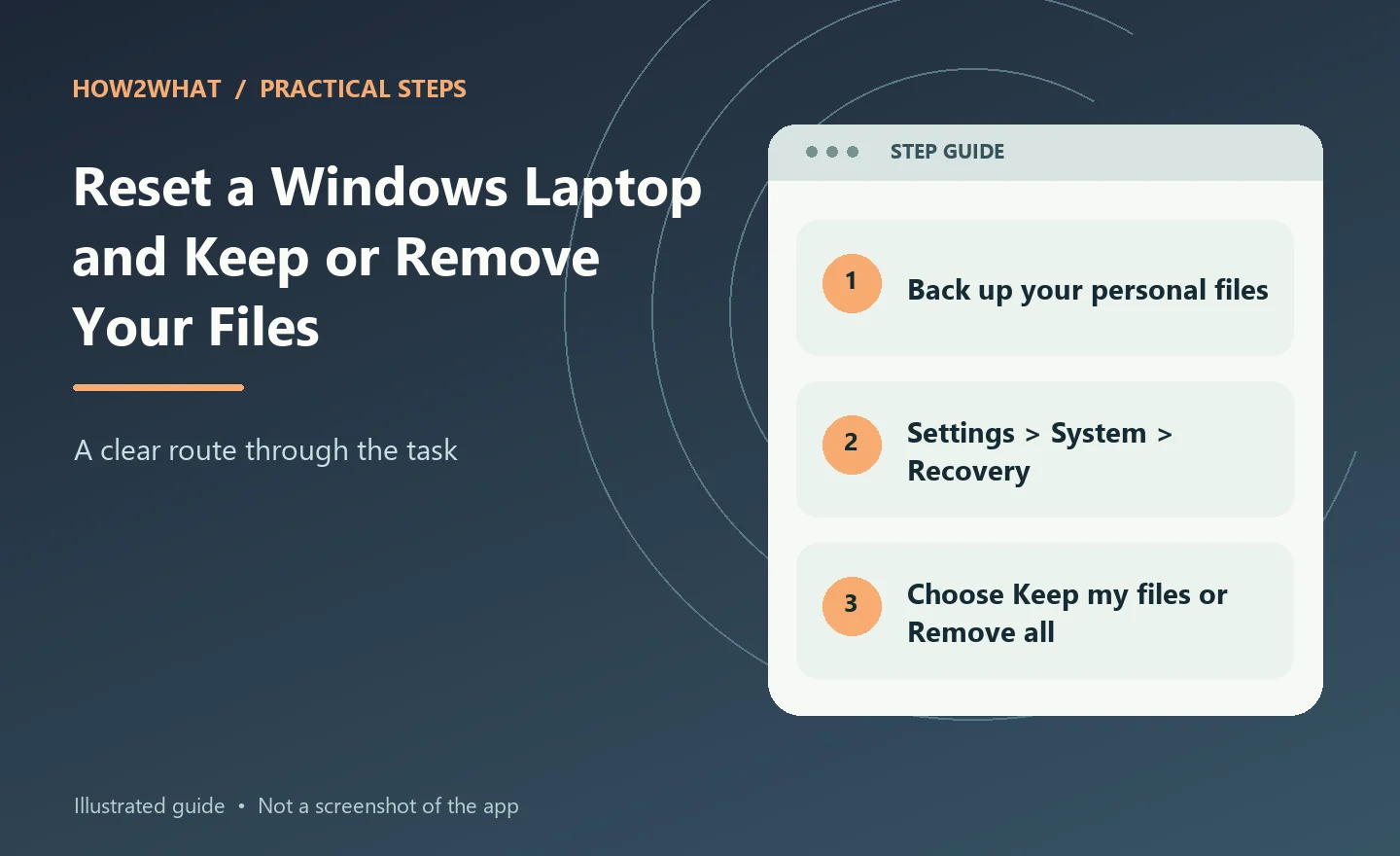
Settings > System > Recovery
Under Recovery options, choose Reset PC. Windows then asks how much you want to keep and how Windows should be reinstalled. The wording may vary slightly with Windows updates, but the key choices remain similar.
Keep my files versus Remove everything
Keep my files reinstalls Windows while preserving personal files.
It removes installed apps and resets many settings. Use it when the laptop is staying with you and you want to repair Windows without deliberately wiping your personal documents.
Remove everything removes personal files, apps and settings.
Use it when you genuinely want a clean start or when preparing the laptop for sale, donation or recycling. Even with Keep my files, maintain an external backup. Resetting an operating system is not a substitute for backup.
Cloud download versus Local reinstall
Windows can normally reinstall using one of two sources.
Cloud download downloads a fresh Windows image from Microsoft. It is useful if local recovery files might be damaged and you have a stable, reasonably fast internet connection.
Local reinstall uses files already stored on the computer. It can be quicker and avoids a large download, but it relies on the local Windows files being usable.
If Windows corruption is part of the problem, cloud download can be the more reassuring option.
Review the additional settings
Before the reset starts, Windows shows what it intends to do. Read this page instead of clicking through automatically. Depending on the options available, you may be able to choose whether to clean the drive more thoroughly, whether to restore manufacturer-installed apps and whether to download Windows from the cloud. If you are keeping the laptop, a normal reset is usually sufficient. If you are giving the laptop away, choose the options intended for removing personal data more thoroughly.
Microsoft notes that the consumer data-cleaning option is not a substitute for government or industry-grade data-erasure standards, so businesses with formal disposal requirements should follow their own secure-erasure policy.
Start the reset and leave it alone
Connect the laptop to mains power. Start the reset and allow Windows to work. The computer can restart several times and the screen may remain black for a surprisingly long period. Microsoft warns that a black screen can sometimes last more than 15 minutes during the process. Do not force the laptop off just because nothing appears to be happening for several minutes. Interrupting the reset can cause it to fail.
Reset from Windows Recovery Environment
If Windows will not boot normally, you may still be able to use Windows Recovery Environment, often called Windows RE. From the recovery menu, choose the troubleshooting options and find Reset this PC. An encrypted device may request the BitLocker key. The recovery environment is useful when the Windows desktop is inaccessible but the built-in recovery system still works. If the recovery environment itself is unavailable or corrupted, you may need Windows installation media instead.
After the reset
If the laptop is staying with you, complete Windows setup, connect to the internet and install Windows updates. Reinstall your applications from official sources. Restore your personal files from backup. Check Device Manager for missing device drivers, although Windows Update handles many drivers automatically. Laptop-specific functions such as hotkeys, touchpad gestures or power-management features may require software from the manufacturer. Do not immediately reinstall every old utility if you reset because of a software problem. Add applications in sensible stages so you can spot if the original problem returns.
Resetting before selling the laptop
Back up your files and sign out of important applications. Use Remove everything. Choose the data-cleaning option intended for giving the device away if offered. Let the reset finish and stop at the initial Windows setup screen. Do not create another account for yourself afterwards. If the laptop belongs to a business, contains sensitive client data or must meet a formal erasure standard, follow the organisation's data-destruction policy rather than relying solely on the consumer reset feature.
If the reset fails
Record the error message. Restart and try again if Windows offers that option. If you used Local reinstall, try Cloud download if available. Check that there is enough free disk space and that the laptop remains connected to power. If Windows cannot repair or reset itself, create official Windows installation media on another computer and perform a clean installation. A clean installation is more involved because you may need to repartition the drive and reinstall drivers, but it bypasses damaged recovery files.
A practical reset checklist
- Back up important files.
- Record licences and passwords you need.
- Confirm the BitLocker recovery key.
- Connect mains power.
- Open Settings > System > Recovery > Reset PC.
- Choose Keep my files or Remove everything deliberately.
- Choose Cloud download or Local reinstall.
- Review the summary.
- Start the reset and do not interrupt it.
- Update Windows and reinstall only what you need.
A Windows reset is powerful because it replaces a damaged software environment with a clean one. Used carefully, it is a controlled recovery tool rather than a desperate last click.
Sources checked: support.microsoft.com.