Resetting a Chromebook can mean two different things: restarting the device to clear a temporary problem, or performing a full factory reset, known as a Powerwash, which erases local data and returns ChromeOS to a fresh state. If the Chromebook is merely running slowly, freezing occasionally or behaving strangely after an extension was installed, start with the least destructive fixes. A factory reset is useful when troubleshooting has failed, when the device is being sold or given away, or when you deliberately want to start again.
Try the simple fixes first
Before using Powerwash, restart the Chromebook normally. Click the time area, select the power icon, let the machine shut down completely and then turn it back on. If the problem continues, disable recently added Chrome extensions one at a time. A bad extension can cause crashes, pop-ups, high CPU use and browser problems that a full reset would appear to cure only because the extension is temporarily removed.
Google recommends a hardware reset for some persistent faults after simpler measures have failed. A hardware reset restarts components such as the keyboard and touchpad. Google warns that it may delete some files in Downloads, so make a backup first; key combinations differ between models. If the problem is obviously tied to one browser setting, Wi-Fi network or extension, solve that directly before erasing the machine.
Understand what Powerwash removes
A Chromebook factory reset erases information stored on the device's local drive. That includes local files in the Downloads folder, device settings, locally installed apps and other information that has not been synced or copied elsewhere. Files already stored in Google Drive are not deleted by Powerwash. Files on an external USB drive or external hard drive are also not erased merely because the Chromebook itself is reset.
The important distinction is local versus cloud storage. Do not assume that every file visible in the Files app is automatically online. Check before resetting.
Back up local files
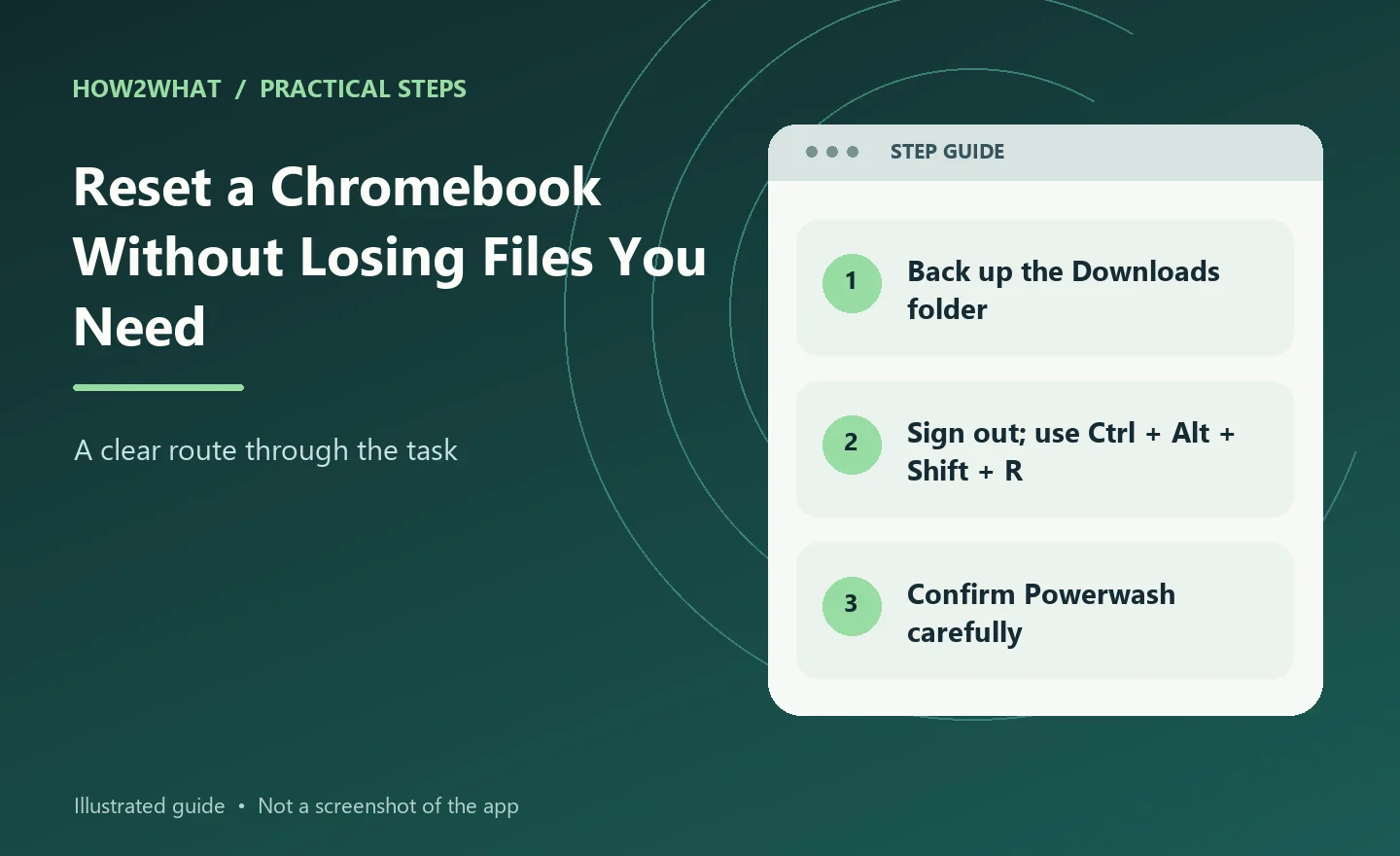
Open the Files app and inspect Downloads and any other local folders. Move important documents, photos and other files to Google Drive or copy them to an external storage device. If you use Linux development tools on the Chromebook, check whether there are files inside the Linux environment that need separate backup. Make sure browser information such as bookmarks, passwords and settings has actually synced to the Google Account you intend to use afterwards.
If the Chromebook belongs to work or school, stop before factory-resetting it unless you have permission. Managed devices can be automatically re-enrolled and may have restrictions controlled by the organisation.
Factory reset from the sign-in screen
Google's standard Powerwash method is quick. First sign out of the Chromebook. Press and hold:
Ctrl + Alt + Shift + R
Choose Restart. When the reset box appears, select Powerwash, then Continue. Follow the onscreen instructions. When the reset is finished, sign in with the Google Account you want to use as the Chromebook owner. The first Google Account used after a normal Powerwash becomes the owner account on an unmanaged Chromebook, so use the correct account rather than signing in casually with someone else's.
Factory reset from Settings
On many current Chromebooks, Powerwash is also available through Settings. Open Settings, then search for Powerwash or Reset settings if the menu layout differs from what you expect. Choose the factory-reset option and follow the prompts. ChromeOS menu names move occasionally between versions, so the keyboard method from the sign-out screen is often the simplest route when instructions online do not exactly match your screen.
What happens after the reset
The Chromebook restarts into its initial setup screen. Connect to Wi-Fi, accept the required setup steps and sign in with your Google Account. ChromeOS then starts restoring information that was synced with the account, such as browser data and supported settings. Apps and extensions linked to the account may reinstall automatically. Local files that were never backed up do not come back. This is why checking Downloads before the reset matters more than people expect.
If you are selling or giving away the Chromebook
Powerwash is the correct starting point for removing your local account and personal information. Back up anything you need, sign out, run Powerwash and stop when the Chromebook returns to the welcome/setup screen. Do not complete the setup using your own account again if the next owner is going to use it. Let them perform the first sign-in themselves. For an organisation-managed Chromebook, ownership and management rules can be different. A Powerwash may not remove enterprise enrolment.
If the Chromebook is frozen and you cannot open Settings
Try a normal forced restart first. For many Chromebooks, holding the power button until the device switches off is enough to recover from a temporary freeze. If the operating system will still reach the sign-in screen, use the Ctrl + Alt + Shift + R Powerwash method. If ChromeOS itself is damaged and the Chromebook cannot boot properly, a factory reset may not be enough. Google provides a separate Chromebook Recovery process that reinstalls the operating system from recovery media.
Powerwash and Recovery are not the same job.
Powerwash versus Chromebook Recovery
Powerwash erases user data and settings, then returns the existing ChromeOS installation to a clean user state.
Recovery removes and reinstalls ChromeOS itself.
Use Powerwash for account cleanup, persistent settings problems and preparing a device for a new owner. Use Recovery when ChromeOS is missing, corrupted or the machine shows a recovery error that normal resetting cannot resolve. Recovery usually requires another computer and a USB drive or other supported recovery media.
If Powerwash does not fix the problem
If the Chromebook still has the same problem after a clean reset, that is useful information.
A fault that survives Powerwash may be:
- a hardware problem;
- an operating-system issue that needs Recovery;
- a problem caused by a synced extension or setting that returns after sign-in;
- a network problem unrelated to the Chromebook;
- an issue with a particular website or service.
Test the machine before reinstalling lots of extensions. If it works correctly while clean and breaks after everything syncs back, one of those restored items may be responsible.
A sensible reset order
Use this progression:
- Restart the Chromebook.
- Update ChromeOS.
- Disable suspect extensions.
- Try a hardware reset if appropriate.
- Back up local files.
- Run Powerwash.
- Test the clean system before restoring everything.
- Use Chromebook Recovery only if the operating system itself is damaged.
That order gives you the best chance of fixing the problem without erasing data unnecessarily.
Sources checked: Google Chromebook Help: Powerwash and Google Chromebook Help: hardware reset.