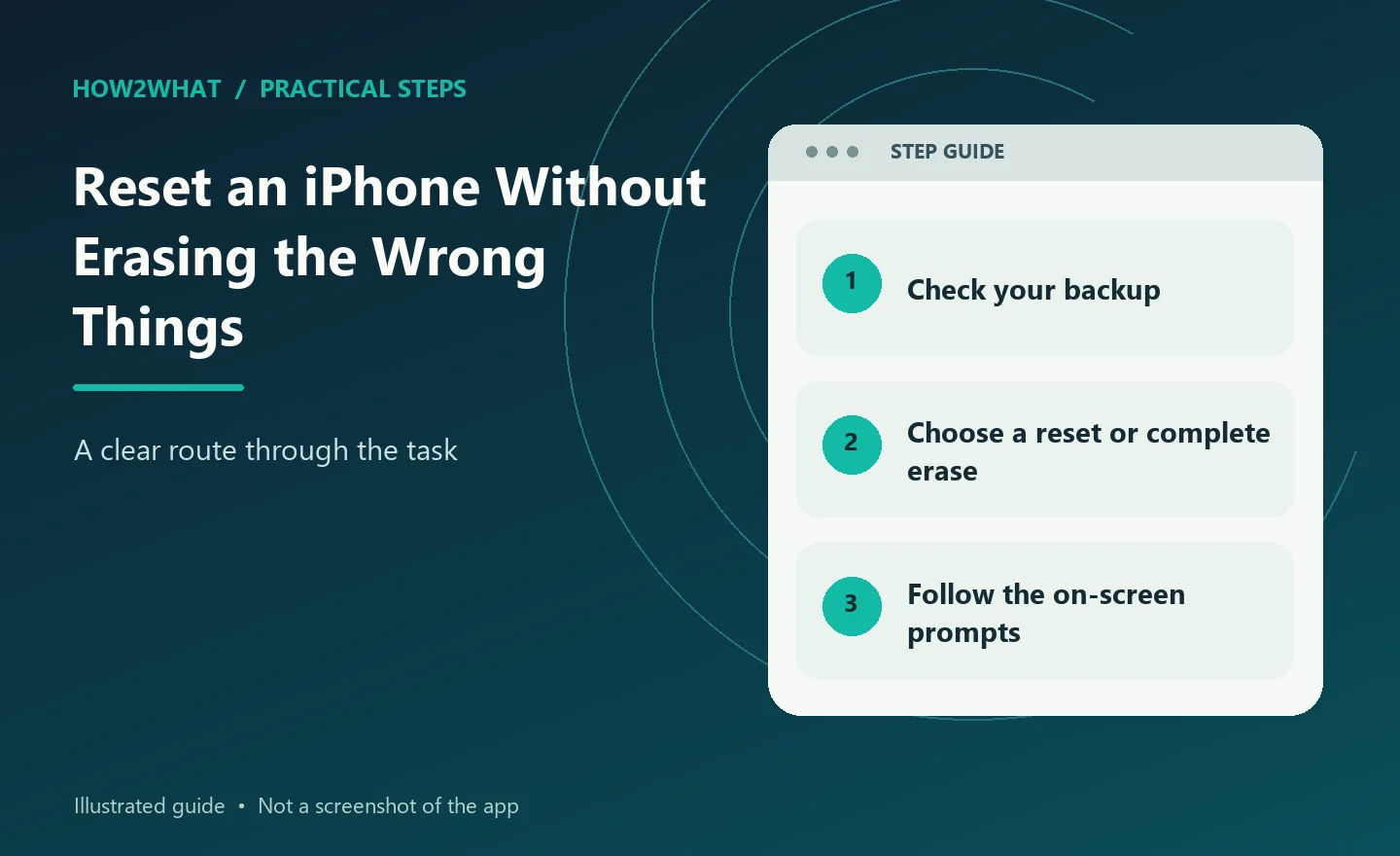
"Reset iPhone" can mean anything from restarting the phone to erasing every photo, app and account on it. Those are very different actions, so choose the least destructive option that matches the problem. If the iPhone is frozen, restart it. If Wi-Fi or settings are misbehaving, reset only the relevant settings. If you are selling the phone, giving it away or deliberately starting from scratch, use Erase All Content and Settings after making sure anything important is backed up.
Restart before you reset
A normal restart fixes many temporary faults without changing data or settings. On current Face ID iPhones, hold a volume button and the side button until the power-off slider appears. Slide to power off, wait for the phone to shut down and then hold the side button to turn it back on. Older iPhone models use slightly different button combinations. If the screen is frozen and the normal shutdown control will not respond, use Apple's force-restart procedure for the exact model. A force restart does not erase the phone.
Do this before wiping settings or data.
Back up before a major reset
If you might need your photos, messages, app data or settings afterwards, make a backup first. You can back up to iCloud or to a Mac or PC. Check that the backup has actually completed. Do not assume that because iCloud is enabled, every category of data you care about is safely stored. If the reset is for troubleshooting, a recent backup gives you the option of restoring the phone if the problem is not fixed.
Reset settings without deleting your data
Apple provides several reset options that leave personal media and apps in place. Go to:
Settings > General > Transfer or Reset iPhone > Reset
Depending on the current iOS version, options can include resetting all settings, network settings, the keyboard dictionary, Home Screen layout, location and privacy settings, and other categories.
Reset All Settings returns many iPhone settings to their defaults without deleting your photos, messages or apps.
Apple's current support guidance confirms that Reset All Settings also removes Apple Pay cards and Apple Watch pairings, along with saved Wi-Fi networks, Bluetooth pairings and other preferences. It does not delete your photos, messages or apps. Use a targeted reset where possible rather than resetting everything.
Reset network settings
If the problem is limited to Wi-Fi, mobile networking or certain connection settings, resetting network settings can be useful. Go to:
Settings > General > Transfer or Reset iPhone > Reset > Reset Network Settings
This removes saved network settings. You should expect to reconnect to Wi-Fi networks and re-enter passwords afterwards. It is not a first-line fix for every internet problem. Restart the phone and router, confirm the service is working and forget/rejoin one problem network before resetting the entire network configuration.
Factory reset: erase all content and settings
A factory reset wipes the iPhone's personal content and returns it to the setup screen. Apple's current route is:
Settings > General > Transfer or Reset iPhone > Erase All Content and Settings
Review the summary of what will be removed. Tap Continue and follow the prompts. You may be asked for the device passcode and your Apple Account password. On an iPhone using eSIM, the phone may ask whether you want to keep or delete the eSIM. Think about what you are doing with the device before choosing. If you erase an eSIM you may need to contact your network provider to reactivate mobile service.
Wait for the process to finish. The iPhone will restart to the Hello screen.
If you are selling or giving the iPhone away
Do more than simply delete a few apps and photos. Back up anything you need, transfer information to the replacement phone and then use Erase All Content and Settings. If you use an Apple Watch, unpair it appropriately before handing over the iPhone. Move or transfer your mobile service as required by your network provider. After the erase, do not set the iPhone up again with your Apple Account. Leave it at the Hello screen for the new owner.
If Find My or Activation Lock remains associated with your account unexpectedly, use Apple's official account/device management instructions to remove the device properly rather than giving the buyer your password.
If you are keeping the iPhone
After the factory reset, follow the setup assistant. You can set the iPhone up as new or restore it from an iCloud or computer backup. Restoring from backup can bring back settings and app data, which is useful, but it can also reintroduce a software configuration that contributed to the original problem. If you factory-reset specifically to diagnose persistent software trouble, test the iPhone briefly as a clean device before restoring everything.
If you forgot the passcode
A normal Settings reset requires access to the phone. If the passcode is forgotten, Apple offers a device-based reset from the Security Lockout screen on eligible iPhones with Find My enabled, network access and the Apple Account password. Otherwise follow Apple's computer-based recovery guidance. Neither method bypasses Activation Lock. The process can involve erasing the device and setting it up again. Activation Lock still protects the iPhone afterwards, so you need the Apple Account associated with the device. Erasing a phone does not bypass ownership security.
Reset versus restore
These terms are often mixed together. A restart simply reboots the iPhone. A settings reset returns selected settings to defaults while keeping personal data.
Erase All Content and Settings factory-resets the device.
A restore can also mean reinstalling iOS and then restoring data from a backup using Finder, Apple Devices or another supported Apple process. Choose the process based on the problem instead of following whichever search result uses the word "reset".
If the reset gets stuck
Do not panic if the screen goes blank or the Apple logo remains visible for a while during an erase or restore. Keep the phone connected to power if battery charge is low. If the process clearly fails or the iPhone will not boot normally afterwards, use Apple's recovery-mode guidance and a Mac or PC. A failed software restore may need another attempt; it does not necessarily mean the hardware is dead.
The quickest safe decision
If you are troubleshooting:
- Restart.
- Update iOS.
- Reset only the relevant settings if necessary.
- Back up.
- Factory-reset only if simpler steps fail.
If you are selling or giving it away:
- Back up or transfer your data.
- Deal with Apple Watch and mobile service.
- Erase all content and settings.
- Confirm the phone returns to the Hello screen.
- Hand it over without signing in again.
That distinction prevents the two biggest reset mistakes: wiping a phone unnecessarily and handing over one that still contains personal information.
Sources checked: Apple Support: factory reset iPhone, Apple Support: Reset All Settings, and Apple Support: forgotten passcode.