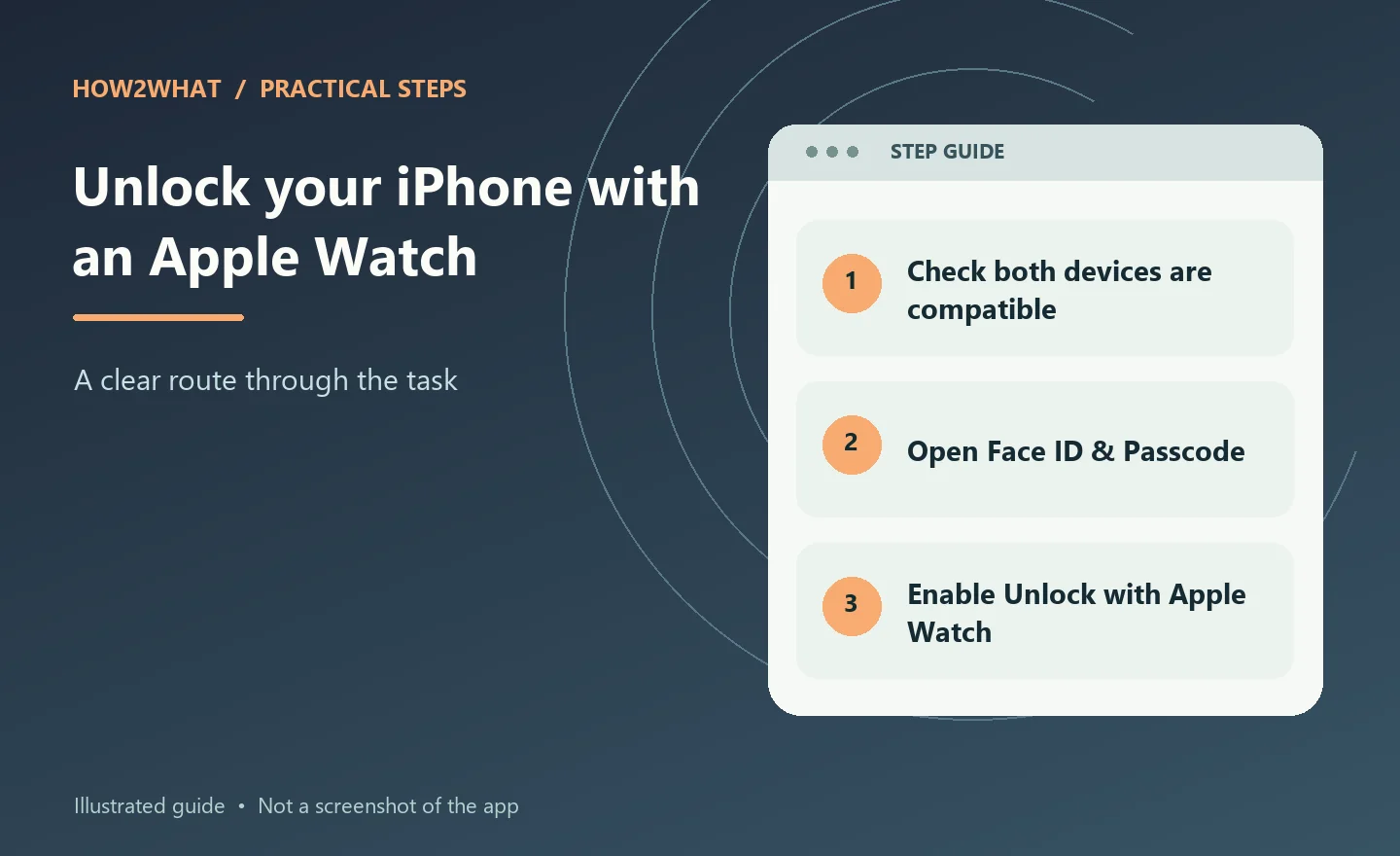
You can use a paired Apple Watch to unlock an iPhone when a face covering, sunglasses or ski goggles prevent Face ID from recognising you. On the iPhone, open Settings → Face ID & Passcode, enter your passcode, then enable the option for your watch. Depending on your iOS version, Apple calls the setting Unlock with Nearby Devices or Unlock with Apple Watch. Put the unlocked watch on your wrist, wake the iPhone and glance at its screen. The watch taps your wrist to confirm that it has unlocked the phone.
This is not the same as using the watch to authorise everything on your iPhone. It is a convenience for unlocking the phone's screen in specific situations. Apple Pay, passwords and protected apps still require their normal security checks.
Check whether your iPhone and watch support it
Apple's current support guidance lists these minimum requirements for the iPhone-unlock feature:
- An iPhone with Face ID, starting with iPhone X, using iOS 14.5 or later.
- An Apple Watch Series 3 or later running watchOS 7.4 or later.
- The watch must already be paired with the iPhone.
- Both devices need Bluetooth and Wi-Fi switched on. They don't have to be connected to a Wi-Fi network for this feature.
- The Apple Watch needs a passcode and Wrist Detection enabled.
- The watch must be unlocked, worn on your wrist and close to the iPhone.
Apple describes the feature as a way to unlock when a mask covers your mouth and nose, or when sunglasses or ski goggles obstruct your eyes. Don't assume a watch will unlock the phone whenever Face ID fails for an unrelated reason.
Most newer compatible phones and watches meet the software version requirement, but it's still worth checking if the option is missing. You can check the iPhone's iOS version in Settings → General → About. On the watch, inspect software information using the Watch app or the watch's own settings. Update both devices using their ordinary software-update controls if necessary.
An iPhone SE or another iPhone without Face ID doesn't gain this feature simply because it is paired with an Apple Watch. The relevant unlock method is tied to Face ID-equipped iPhones.
Turn on Unlock with Apple Watch
Set up the feature on the iPhone, not through a separate switch in the watch face.
- Wear the Apple Watch and make sure it is unlocked. If you have recently put it on, enter the watch passcode.
- Open Settings on the iPhone.
- Tap Face ID & Passcode and enter the iPhone passcode when asked.
- Scroll down to the section headed Unlock with Nearby Devices or Unlock with Apple Watch. Apple's instructions use both labels in different versions of its guidance.
- Turn on the switch next to the name of the Apple Watch you want to use.
- If prompted, enable Wrist Detection on the watch.
If you have more than one paired watch, check which watch is selected. Apple's watch guide says you can enable the setting for each eligible watch rather than assuming one switch covers them all.
There is no need to install a separate unlocking app, pair the devices a second time or buy an accessory. This is a built-in Apple feature.
Unlock the iPhone while wearing a mask or sunglasses
With the setting on, confirm that the watch is unlocked on your wrist and remains near your iPhone. Wear the face covering or glasses that would otherwise obstruct Face ID.
Wake the iPhone by lifting it or tapping its screen. Look towards the screen as you normally would to unlock with Face ID. If the Apple Watch method is available, the iPhone unlocks and the watch gives a short vibration, or haptic tap, and shows an unlock alert.
Swipe up from the bottom of the iPhone screen to continue into the phone. You shouldn't need to tap anything on the watch to approve an intended unlock.
The vibration matters. It lets you know that the phone has unlocked through the Apple Watch method even if you weren't watching the small status indicator on the iPhone. If you see no alert, don't immediately assume the feature is broken: the phone may have unlocked normally using Face ID, or a prerequisite for the watch method may not have been met.
What to do if the iPhone unlocks unexpectedly
Apple has included an important safeguard. When the watch says it unlocked the iPhone, its alert includes a Lock iPhone button. If you didn't intend the phone to unlock, tap that button on the watch.
Apple says the next attempt to unlock the iPhone after pressing it will require the iPhone's passcode. This prevents the watch method from immediately reopening the phone in the same situation.
Keep this distinction in mind: the Apple Watch unlock feature doesn't use Face ID to recognise and authenticate your identity at that moment. It relies on the nearby, unlocked watch being worn on your wrist and the other requirements being met. The notification and the ability to lock the phone again are particularly useful if a nearby iPhone has been awakened when you did not mean to use it.
If you share a space with other people and don't want this form of unlocking available, switch the feature off in Settings → Face ID & Passcode. Doing so doesn't unpair your watch or remove its other functions.
Why Unlock with Apple Watch sometimes doesn't work
Work through the checks in a sensible order. Many failures are caused by one missing prerequisite rather than a fault with the watch.
The watch isn't actually unlocked
If you removed your watch and put it on again, it may have locked. Look at the watch and enter its passcode if required. The feature won't work with a locked watch or one that isn't being worn.
Wrist Detection or the watch passcode is off
The Apple Watch needs both a passcode and Wrist Detection. Inspect those settings in the Watch app or on the watch, and make sure the device recognises that it is being worn. Apple may ask you to enable Wrist Detection when you first switch on the unlock feature.
Bluetooth or Wi-Fi is disabled
Apple requires both radios to be switched on for this method. The devices do not need access to a particular wireless network, but turning off Wi-Fi entirely can prevent the feature. Check the radios on both devices rather than looking only at whether the iPhone shows mobile signal.
The devices aren't close enough
This is a proximity feature. Test it with the Apple Watch on your wrist and the iPhone in your hand. Don't use success at a distance as proof that it will always work that far away.
You are not in a supported unlocking situation
Apple specifically documents unlocking with a mask or sunglasses, or similar facial obstructions. The watch isn't a universal substitute for a failed Face ID scan. A phone that has restarted or requires the passcode for a normal security reason can still ask you to enter it.
The setting has disappeared
Go back to Face ID & Passcode and search the page carefully for the name of the watch. The current general Apple support article says Unlock with Nearby Devices, while the Apple Watch user guide still refers to Unlock with Apple Watch. Check device compatibility and software versions before assuming the feature was removed.
If everything looks correct, restart the iPhone and the watch using the normal shutdown controls, then test again. Don't erase or unpair a watch just to troubleshoot an unlock feature until you've exhausted Apple's ordinary support steps.
What the feature cannot unlock
Apple Pay: Unlock with Apple Watch doesn't authorise Apple Pay on the iPhone. Payment authentication remains separate. You can still use an Apple Watch for Apple Pay through the watch's own supported payment method, with its own security requirements.
Saved passwords: Unlocking the iPhone screen with the watch is not permission to reveal stored Keychain passwords without further verification. Your phone can still require a passcode or an appropriate biometric check.
Apps requiring authentication: Banking apps, password managers and other protected apps may ask for Face ID, the device passcode or their own login. The watch-unlock convenience does not override those protections.
An iPhone that cannot use Face ID: This method depends on a supported Face ID iPhone. A watch cannot add the required phone hardware.
Understanding those limits prevents a common misunderstanding: the phone may unlock successfully, yet a payment or app still asks for verification. That is expected behaviour, not necessarily a fault.
Do you still need this on newer iPhones?
Possibly not for everyday mask use. Apple also offers Face ID with a Mask on iPhone 12 and later with iOS 15.4 or later. This method analyses the area around your eyes and can authenticate supported app functions and Apple Pay. It is not available on every older Face ID-equipped iPhone.
To turn it on, open Settings → Face ID & Passcode, select Face ID with a Mask, and follow the setup instructions. If you wear ordinary glasses, Apple allows you to add glasses to improve recognition when using that option.
However, Face ID with a Mask is not designed to work with sunglasses. That is one reason Unlock with Apple Watch remains useful for some people: you can leave both features enabled and let the phone use the appropriate available method.
If you don't own a compatible Apple Watch, Face ID with a Mask may be the simpler solution on a supported newer iPhone. You shouldn't buy a watch purely because you've heard one is required to unlock a masked iPhone.
Questions about unlocking with Apple Watch
Do I have to tap the watch every time?
No. In a supported situation, the phone unlocks when you wake it and glance at the screen. The watch alerts you with a haptic tap and a notification. The button on that notification is there to lock the iPhone again if the unlock was unintended.
Does the watch need mobile data?
No. Apple's listed connection requirement is that Bluetooth and Wi-Fi are switched on. A cellular Apple Watch subscription isn't necessary just to unlock a nearby iPhone.
Will the watch unlock an iPhone belonging to someone else?
The Apple Watch must be paired with the iPhone and enabled for that device in its Face ID settings. Wearing a random unlocked Apple Watch near somebody else's phone doesn't configure their phone to accept it.
Can I disable it without resetting the watch?
Yes. Return to Settings → Face ID & Passcode on the iPhone and turn off the switch for your Apple Watch under the relevant unlock section.
Is it the same as unlocking a Mac with Apple Watch?
No. Unlocking a Mac is a separate Apple feature with its own setup and requirements. The instructions here are specifically for using an Apple Watch to unlock an iPhone.
Official Apple instructions
- Apple Support UK — Unlock your iPhone with Apple Watch when wearing a mask or sunglasses, updated September 2026.
- Apple Watch User Guide — Unlock your iPhone with Apple Watch.
- Apple Support UK — Use Face ID while wearing a mask, updated September 2026.