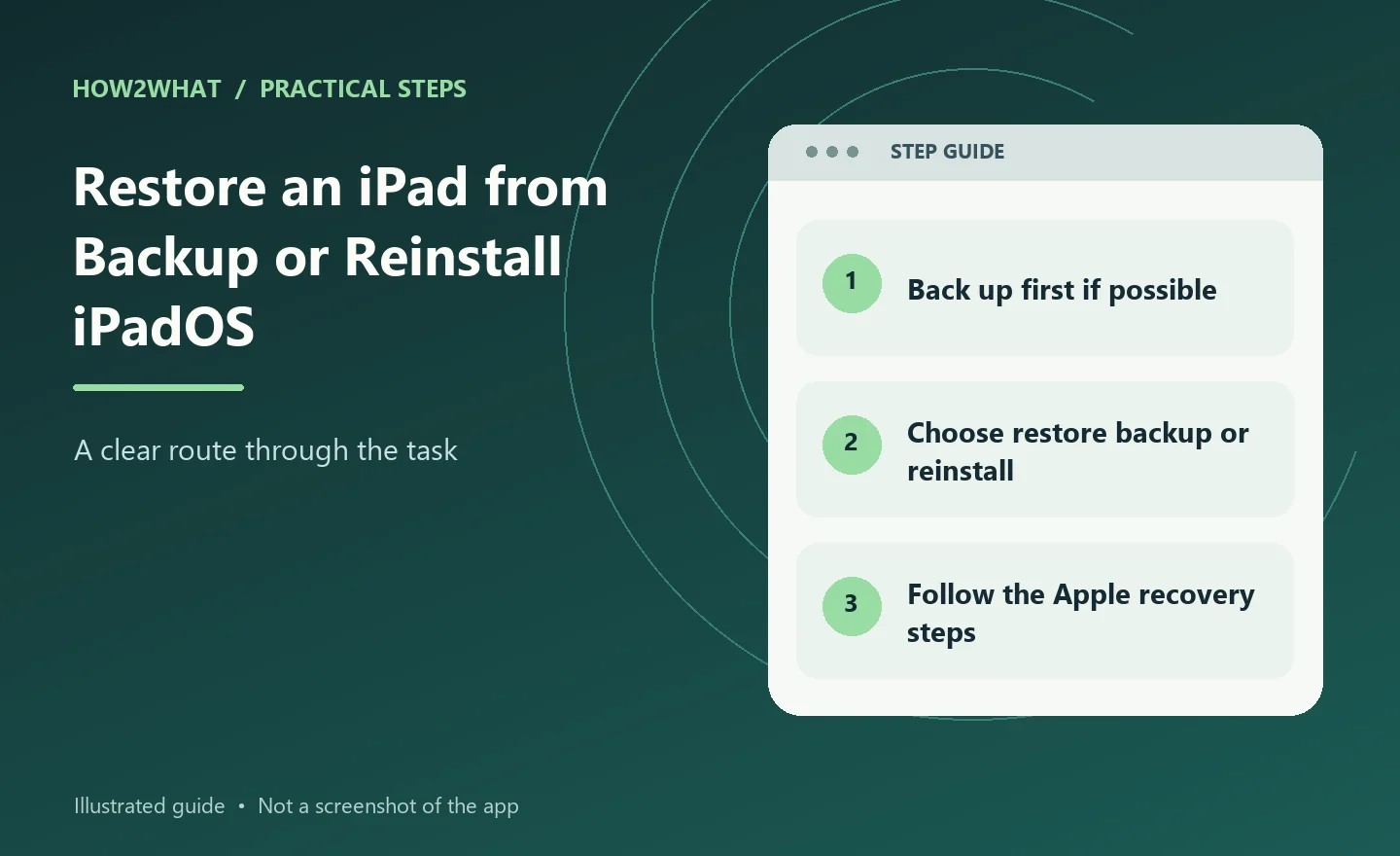
Restoring an iPad can mean two things: putting your apps and data back from a backup, or erasing the device and reinstalling it before starting again. The right method depends on whether the iPad still works, whether you have a backup and whether you are trying to solve a software problem, move to a replacement device or prepare the iPad for somebody else. Before erasing anything, make sure you know which Apple Account is signed in and confirm that anything important is backed up.
Decide what you are trying to do
If you have a new or freshly erased iPad and want your old information back, restore from an iCloud or computer backup during setup. If the iPad is malfunctioning but you can still use it, try a restart and software update first. If it is stuck in recovery mode or cannot boot, use Apple's current computer recovery instructions and try Update before Restore if the device and error allow it.
If you are selling or giving it away, erase all content and settings rather than restoring your own backup onto it. Those are different jobs, even though Apple uses the word "restore" in several places.
Make a backup first
If the iPad is usable, back it up before doing anything destructive. For iCloud, open Settings, tap your name, open iCloud, then use the iCloud Backup section. For a computer backup, connect the iPad to a Mac or Windows PC and use Finder, Apple Devices or the supported Apple software for your system. Check the time of the latest completed backup. A backup from six months ago is not the same as a current one.
If you use encrypted computer backups, keep the backup password somewhere safe. Apple cannot restore an encrypted local backup for you if you lose that password.
Restore an iPad from iCloud backup
A restore from iCloud is offered during the initial setup process. Turn on the new or erased iPad and work through the setup screens. When you reach the screen offering ways to transfer apps and data, choose the iCloud backup option. Sign in with the Apple Account associated with the backup. Choose the backup you want to restore. Pay attention to the date and device name if several backups are listed.
Keep the iPad connected to Wi-Fi and preferably connected to power. The first stage restores enough information to get the iPad running, while apps, photos and other content can continue downloading in the background afterwards. Do not assume the restore has failed simply because every app is not present immediately.
Restore from a Mac or PC backup
Connect the iPad using a suitable cable. On a current Mac, open Finder and select the iPad in the sidebar. On Windows, use the current Apple Devices app or the appropriate supported Apple software. Choose Restore Backup rather than Restore iPad if your aim is to put data back from an existing backup. Select the correct backup and enter the encryption password if required. Keep the iPad connected until the restore finishes and the computer says it is safe to disconnect.
A backup restore puts supported settings, app data and other information back onto the iPad. Media already synced through cloud services can continue appearing afterwards.
Erase an iPad from Settings
If the iPad works and you want to return it to factory settings, open:
Settings > General > Transfer or Reset iPad > Erase All Content and Settings
Review what will be removed. Enter the device passcode and Apple Account password if asked. If the iPad has cellular service using an eSIM, consider whether the plan should remain or be removed. The right choice depends on whether you are keeping the device and what your mobile provider requires. Once complete, the iPad returns to the Hello screen. If you plan to keep it, you can set it up and restore a backup. If you are giving it away, stop at the Hello screen.
Restore an iPad that will not start properly
When an iPad cannot boot or is disabled, use recovery mode with a computer. Connect the iPad to a Mac or PC. The button sequence for entering recovery mode depends on whether the iPad has a Home button. For models without a Home button, the procedure generally uses the volume buttons followed by holding the top button until the recovery screen appears. For models with a Home button, the method is different.
Because Apple changes hardware layouts between generations, use the recovery-mode instructions for your exact iPad model rather than forcing an iPhone sequence onto it. Once the computer detects the iPad in recovery mode, it can offer to update or restore the device. An Update attempts to reinstall the operating system without erasing data where possible. A Restore erases the device and installs a fresh copy of iPadOS.
Try the less destructive option first when Apple presents it as suitable.
What if you forgot the passcode?
If the iPad is locked because the passcode is forgotten, recovering access usually requires erasing the device. After the erase, you can restore from a backup if one exists. Activation Lock remains tied to the Apple Account. Erasing an iPad does not remove the ownership protection. You need the Apple Account credentials associated with the device to activate it normally afterwards. If the iPad belongs to somebody else, do not attempt to bypass Activation Lock. The owner needs to remove it from their account using Apple's proper process.
What gets restored from a backup?
A backup can restore many settings, app data, messages and other information, but not every item is stored in the backup itself. Data already synchronised through iCloud may download separately after setup. Apple Pay cards, some biometric data and certain security information are not restored in the same way as ordinary app data. Apps are often downloaded again from the App Store rather than copied as complete packages from the backup.
Give the iPad time after the first restart before judging the result.
If the restore appears stuck
Keep the iPad connected to reliable Wi-Fi and power. Check Apple's system status if iCloud services appear unavailable. For a computer restore, use a direct USB connection rather than an unreliable hub where possible. Restart the computer and update its Apple software if it repeatedly fails to recognise the iPad. If the iPad drops out of recovery mode before the software download finishes, let the computer complete the download and then put the iPad back into recovery mode.
Record any numerical error message. Apple support pages use those codes to distinguish connection, software and hardware failures.
If you are restoring to solve a problem
Do not necessarily restore every old setting immediately. If you erased the iPad because of a persistent software issue, set it up temporarily as a new iPad and test the problem first. If the fault disappears on a clean setup but returns immediately after restoring a backup, the backup may be reintroducing a problematic configuration. If the fault remains even on a clean installation, hardware becomes more likely.
Before selling or giving the iPad away
Back up or transfer anything you want to keep. Sign out or follow Apple's handover process as required. Erase all content and settings. Make sure the iPad reaches the Hello screen and no longer contains your personal data. Do not set it up again with your own Apple Account. If it is a cellular model, make sure the mobile plan and physical SIM or eSIM are handled appropriately.
Sources checked: support.apple.com, support.apple.com.