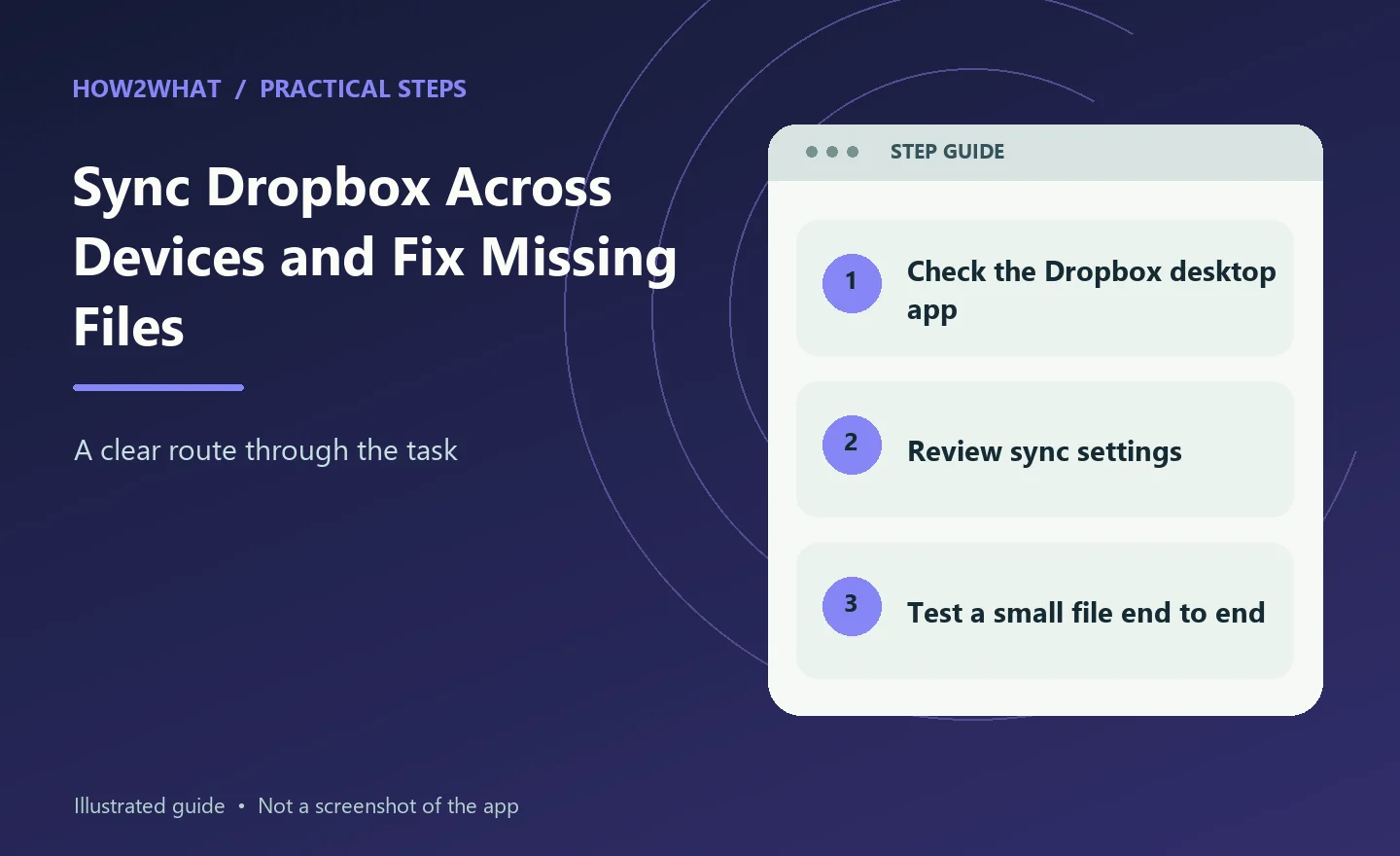
Dropbox sync keeps files in your Dropbox account and the Dropbox folders on your computers up to date with each other. Add or change a file on one connected device and Dropbox uploads that change so it can appear on your other signed-in devices. When syncing stops, the cause is usually one of a handful of things: the desktop app is not running, the account is wrong, the internet connection has failed, the file is excluded from sync or the computer has run out of space.
Install the Dropbox desktop app
If you want a normal Dropbox folder that syncs automatically, install the official Dropbox desktop application. Download it from Dropbox. Sign in with the Dropbox account that contains the files you want. During setup, Dropbox creates or connects a Dropbox folder on the computer. Anything placed in that synced area is managed by the Dropbox app according to your sync settings. The Dropbox website and desktop app are different: seeing a file on dropbox.com does not mean it is necessarily downloaded for offline use on the computer.
Understand online-only and offline files
Modern Dropbox can show files in File Explorer or Finder without storing a full local copy of every file. An online-only file appears in the Dropbox folder but downloads when you open it. A file marked available offline keeps a local copy on the device. This saves disk space on laptops with smaller drives. If you need a file while travelling without internet, mark it for offline availability before you leave.
Do not assume that because you can see the filename, all of its contents are already stored locally.
Check whether Dropbox is syncing
Look for the Dropbox icon in the Windows notification area or macOS menu bar. Open it to see current sync status.
You may see messages such as:
- up to date;
- syncing;
- paused;
- waiting to sync;
- unable to sync.
If the icon is missing, start the Dropbox app. A completely closed desktop app cannot keep the local folder synchronised in the background.
Force a practical sync check
Create a tiny text file inside the Dropbox folder. Wait for Dropbox to report that it is up to date. Open dropbox.com in a browser and check whether the file appears. Then edit that file on the website or another device and see whether the change returns to the computer. This simple test tells you more than staring at a folder and wondering whether yesterday's file is current.
Delete the test file afterwards if you do not need it.
Resume paused syncing
Dropbox can be paused manually. Click the Dropbox icon and check the sync controls. If syncing is paused, resume it. Also check whether battery-saving software, network restrictions or the operating system has suspended background activity. On a laptop, connect to mains power temporarily if aggressive power saving is suspected.
Check the internet connection
Open another website. If the connection itself is unstable, Dropbox cannot upload reliably. Corporate networks, VPNs, firewalls and filtered public Wi-Fi can also block or interfere with cloud storage. Try another trusted network if possible. If Dropbox works through a phone hotspot but not the office network, the problem is probably network policy rather than the Dropbox account. Do not disable company security controls without permission.
Make sure you are signed into the right account
It is surprisingly easy to have a personal Dropbox account in the browser and a work account in the desktop app. Open Dropbox preferences and check the account email address. Compare it with the account on dropbox.com. If a shared folder seems to be missing, also confirm that the correct account actually has access to it. Signing out and into another account changes what appears in the local Dropbox folder, so back up unsynced local work before doing that casually.
Selective sync
Selective sync lets you exclude entire folders from a particular computer. With selective sync, an unchecked folder stays in the Dropbox account but disappears from that computer's local Dropbox folder; Dropbox's documentation confirms that the setting is specific to each computer. Open Dropbox preferences and find the sync/selective-sync controls. Check whether the missing folder has been excluded. By contrast, an online-only file stays visible in the computer's Dropbox folder but downloads when you open it.
Use it for large archives you do not need on every machine.
Check free disk space
Dropbox cannot make large files available offline if the drive is full. Open the computer's storage settings and check available space. If space is tight, make infrequently used Dropbox files online-only or move unrelated local files elsewhere. Do not delete random files from the Dropbox folder just to create space unless you also want them deleted from Dropbox. A normal deletion inside the synced folder can sync to the cloud and other devices.
Use Dropbox's online-only controls instead.
File names and unsupported files
Some file names or characters can create cross-platform problems, especially when a folder is shared between Windows and macOS. Dropbox can flag files it cannot sync. Open the Dropbox status panel and read any error message. Rename the affected file if necessary. Very large files also take time. A file that seems "stuck" may simply still be uploading over a slow connection. Check the actual progress before interrupting it.
Resolve a conflicted copy
If two people or devices edit the same file before Dropbox can synchronise the first change, Dropbox may create a conflicted copy instead of silently overwriting work. Compare the files. Keep the correct changes and delete or archive the duplicate once you have resolved the differences. For frequently edited shared documents, consider using a collaborative document format designed for simultaneous editing rather than repeatedly editing one desktop file offline.
If Dropbox is stuck indexing or syncing
Restart the Dropbox desktop application. Restart the computer. Check the Dropbox status page for a service outage. Install the latest supported Dropbox desktop app. Make sure the operating system itself is supported. If the problem affects only one file, move a copy outside Dropbox, let the folder settle, then investigate the file rather than resetting the entire application. If the problem affects everything, check account, network and app status first.
Shared folders
A shared folder syncs only while your account remains a member and the folder is included on the device. If someone removes your access, sync stops. If a shared folder has disappeared, check the Dropbox website and sharing settings before reinstalling the desktop app. Also check storage quotas where they apply. A shared folder can consume account space depending on the Dropbox plan and sharing model.
Protect yourself from accidental deletion
Sync is not the same as an independent backup. If you delete a synced file, that deletion can propagate. Dropbox includes file recovery and version-history features depending on the plan, but you should not depend on sync alone for irreplaceable data. Keep a separate backup for files that would cause serious loss if accidentally deleted or corrupted.
Sources checked: help.dropbox.com, help.dropbox.com, help.dropbox.com.