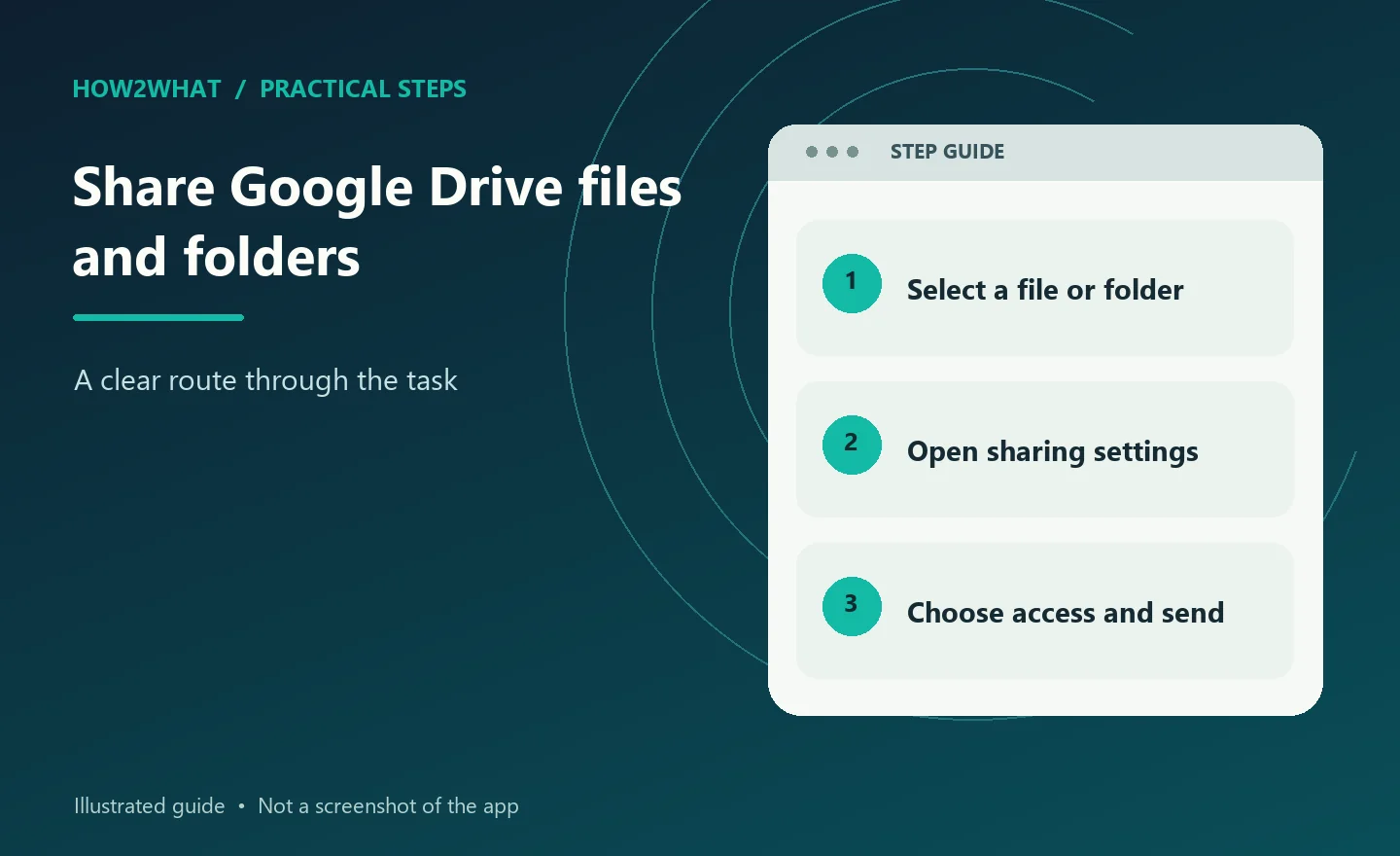
Google Drive sharing is controlled from the Share window. You can invite specific email addresses for private collaboration, or change General access to Anyone with the link when a link is more convenient. The access level matters: Viewer can read, Commenter can add comments or suggestions where supported, and Editor can change the content and may be able to share it onwards.
In Google Drive, select the file or folder and click Share. Enter the person's email address, choose Viewer, Commenter or Editor, then click Send. For a link, open the same window, change General access from Restricted to Anyone with the link, choose the role, click Copy link and then Done. Use Restricted for private material and share folders carefully because access normally applies to their contents.
Choose the item and open Share
Open drive.google.com and sign in to the account that owns the item, or that has permission to share it. Find the file or folder, select it, and click Share. You can also open a Google Doc, Sheet or Slide and use its Share button. The same permission choices apply, although a work or school administrator can limit what your account is allowed to do.
Before opening the dialogue, decide whether you are sharing one file or a folder. A folder is broader: people who receive access to it can normally open the files and subfolders inside it at that level. If only one document is needed, sharing that document avoids exposing the rest of the folder.
Invite specific people or a group
Under Share with people and groups, enter an email address or Google Group and press Enter. Select the role beside the address. Choose Viewer for reading, Commenter for feedback and comments where that file supports them, or Editor for people who need to change the file. Add each recipient deliberately; an Editor has considerably more control than someone who only needs to read a finished document.
Google Drive normally sends an email notification. Leave Notify people selected when the recipient needs an invitation, and add a short message explaining what the file is for. If the person already knows to expect the link, you can turn notification off, but make sure they will receive the link or otherwise know where to find the item. Click Send or Share to apply the invitation.
Share with a link when appropriate
For a link rather than named invitations, look under General access and click the access menu. Restricted means only accounts already granted access can open the item. Anyone with the link allows anybody who obtains the link to open it without being individually added, subject to restrictions imposed by a work or school account. It is not a password-protected audience list, so do not use it for confidential material merely because the URL is hard to guess.
Choose Viewer, Commenter or Editor beside the general-access setting, then click Copy link and Done. Paste the link into the intended message or service. When a link is shared, the owner's name and email address may be visible to people who access the file, so consider that before posting it publicly.
Check folder inheritance before sharing
Sharing a folder gives the recipient access to its contents according to the folder's permission. An Editor of a folder can generally add, edit, move or delete items within it, so that role is suitable only for someone who needs to manage the working area. A Viewer can see the folder and open its files, while a Commenter can provide feedback without editing the content directly.
Drive does not let you make a person less privileged on one file than they are on the containing folder. If a sensitive file needs tighter access, move it into a separate folder with the appropriate permissions, or share the file itself instead of the parent folder. Be careful when moving items because their inherited access can change with the new location.
Change or remove access later
To review access, select the file or folder, click Share and find the person or group in the sharing window. Use the role menu to change Viewer, Commenter or Editor, then save the change if Drive asks. To remove a named recipient, choose Remove access and save. To close a link, change General access back to Restricted and click Done.
A link that has already been copied may still circulate, but changing it to Restricted prevents people without another permission from opening the item. Also review access inherited from a parent folder or granted through a group. Removing one email address does not remove access supplied by a group membership, a shared drive or another folder permission.
Which Google Drive role should you use?
Viewer is the sensible choice for a reference file, final PDF or read-only briefing. Commenter suits a draft that needs remarks or suggestions but should not be rewritten by every recipient. Editor is for genuine co-authors: it permits changes and, in My Drive, editors may be able to share the item with others unless the owner changes the advanced sharing controls.
Do not give Editor access simply because someone needs to download a copy. A Viewer can usually download, print or copy unless the owner disables those options for viewers and commenters. Those controls reduce casual copying but cannot guarantee that information cannot be reproduced, photographed or saved elsewhere.
-
Viewer: read the item, with downloading controlled by the owner where available.
-
Commenter: read and add comments or suggestions, but not change the main content.
-
Editor: change the file and potentially share or reorganise it, depending on the item and account settings.
Sharing from a work or school account
A Workspace administrator can prevent sharing outside the organisation, restrict link sharing or disable certain roles. If an external address is rejected, the problem may be an organisation policy rather than a mistake in the email address. Ask the recipient for the account they actually use, then contact the administrator if the organisation must approve external collaboration.
Shared drives are different from My Drive. They are intended for team-owned work, so members share ownership of the files and those files remain in the shared drive when a member leaves. Shared-drive roles and link settings can be narrower than the choices available in a personal Drive, and a manager may be needed to change them.
Why someone still sees 'You need access'
First ask the person to open the link while signed in to the Google account that was invited. A browser may be using a different account, particularly when several Google accounts are open. If the item is Restricted, the owner must add the exact account or a group containing it. If the link was copied before permissions changed, copy it again only after confirming the current General access setting.
For a folder, check the folder rather than only an individual file. For a work or school account, check whether an external user is blocked by policy. A person who has Viewer or Commenter access may also be unable to share the item onwards; that is a permission limit, not evidence that the link is broken.
Tips
-
Share a finished document as Viewer and invite named people as Commenters only when you need feedback.
-
Use a Google Group for a changing team, but remember that group membership can grant access even after an individual invitation is removed.
-
For a large ongoing team, consider a shared drive so the work is not tied to one person's My Drive ownership.
-
Open the copied link in a private browser window or a separate account when you need to test what an uninvited person can see.
Warnings
-
Anyone with the link can pass that link on, so keep private or personal information on Restricted access.
-
Folder access normally applies to files and subfolders inside it; do not share a parent folder casually.
-
Changing or removing one named permission may not remove access supplied by a group, parent folder or shared drive.
-
Do not publish a link containing confidential information just because the URL itself is not listed in search results.
Sources
-
Google Drive Help: Share files from Google Drive: https://support.google.com/drive/answer/2494822?hl=en
-
Google Workspace Learning Center: Share files and folders in Drive: https://support.google.com/a/users/answer/9310248?hl=en
-
Google Drive Help: Stop, limit, or change sharing: https://support.google.com/drive/answer/2494893?hl=en
-
Google Drive Help: Store and share files or folders with shared drives: https://support.google.com/drive/answer/7286514?hl=en