If one website keeps signing you into the wrong account, showing an old error or refusing to remember a changed setting, you can delete that site's cookies without clearing cookies for every website you use.
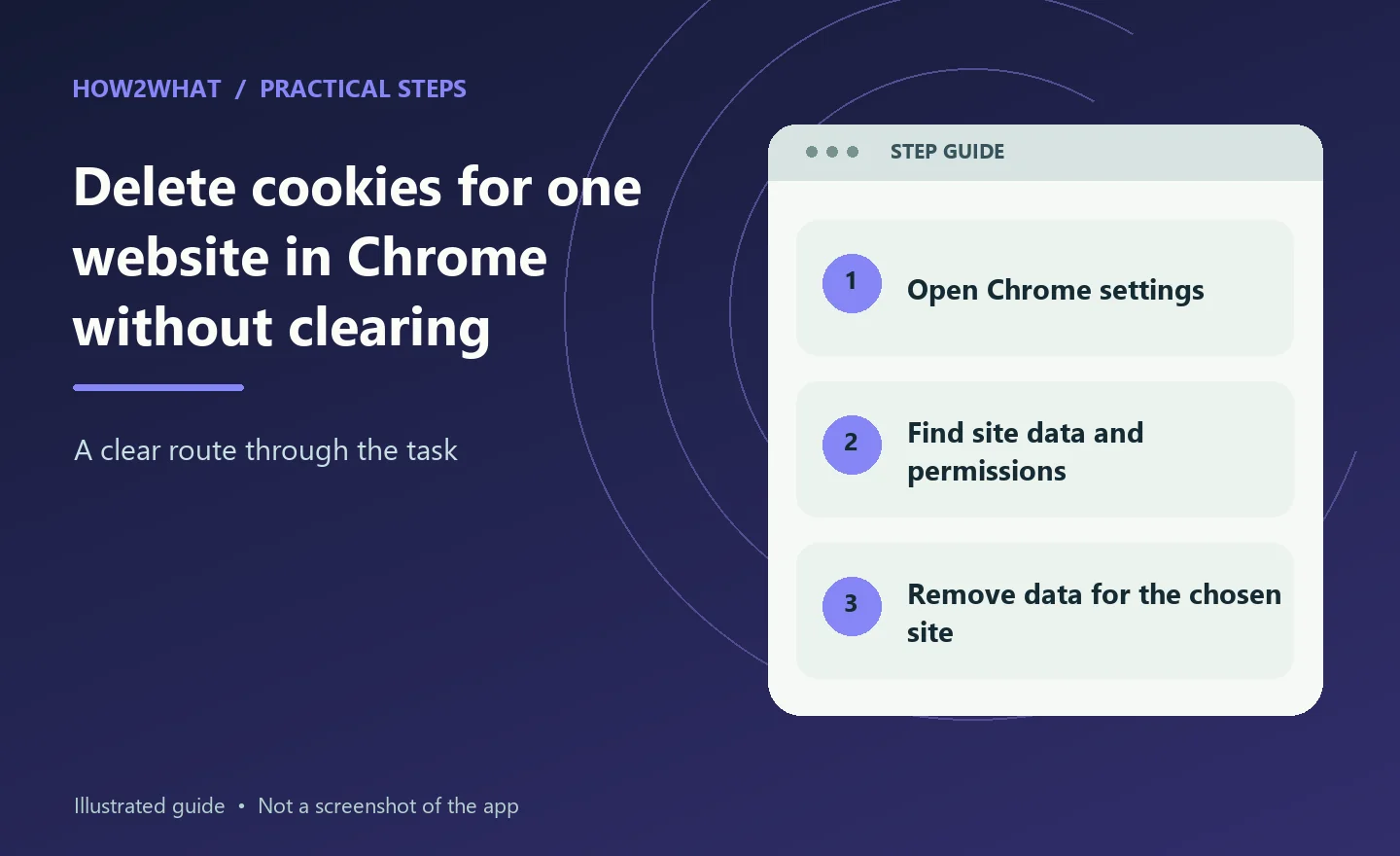
On Chrome for Windows, Mac or Linux, open Settings → Privacy and security → Third-party cookies → See all site data and permissions. Search for the website, choose the delete icon beside its entry and confirm. Google's current help page lists that route for removing individual sites' stored data. Other sites' cookies are left alone, although the site you remove may sign you out.
This is a targeted reset, not a fix for every browser problem. Before deleting anything, check that you know the site's password or have another way to sign back in.
Why delete the cookies for just one site?
Cookies are small pieces of information a website can ask your browser to keep. They can help a site recognise your session, remember a language choice or keep you signed in between visits. When that information becomes stale or inconsistent, clearing the site's saved data can be a useful troubleshooting step.
For example, imagine an online shop continually opens the wrong customer account. You have already tried signing out normally, but the old account still appears when you revisit the site. Removing that site's saved cookies can give you a cleaner starting point when you sign in again.
Another common example is a website stuck in a loop, redirecting repeatedly between its login and home pages. Cookies aren't always responsible; browser extensions, account issues and the website's own servers can cause similar behaviour. Still, a targeted cookie reset is usually less disruptive than wiping your entire browser history and site data.
Clearing cookies for all sites can sign you out of banking, shopping, work and other services at once. When only one site is misbehaving, it makes sense to begin with that site.
Delete cookies from a specific site on a Windows or Mac computer
The current Chrome Help instructions use the same general menu route on desktop systems.
- Open Google Chrome and select the three-dot More menu at the top right.
- Choose Settings.
- In the left-hand menu, select Privacy and security.
- Open Third-party cookies. Despite the name, this area also contains tools for viewing and removing saved site data.
- Select See all site data and permissions.
- Use the search field near the top of that page to enter the name or domain of the website you want to reset.
- Find the matching entry, select its Delete or bin icon and confirm the deletion.
Chrome may group related data under a domain rather than displaying the full address of every page you've visited. Read the entry carefully before deleting it, particularly where one company operates several services or subdomains.
After removal, close the affected tab or reload the website. If the site uses an account, expect to sign in again. You may also need to restore preferences such as a language, a cookie-consent choice or a shopping-basket state.
There is no need to delete your saved bookmarks, general browsing history or downloads as part of this operation. Keep the change as narrow as possible while you test whether it has fixed the problem.
A quicker method while the website is open
Chrome also provides site controls from the address bar. On a webpage, select the icon showing the site's information near the address, then open Cookies and site data. Where offered, choose Manage on-device site data to inspect the relevant storage controls.
This route can be convenient if you have the problem site open in front of you and don't want to search through the full settings page.
The exact icon or wording depends on the current Chrome interface and the website. Google's help documentation continues to list the full Settings route as the main procedure for deleting specific cookies, so use that if you can't find the site-data control beside the address bar.
Be careful not to confuse viewing cookies with allowing third-party cookies. If your goal is simply to reset the site's login state, you probably don't need to change Chrome's global privacy settings.
Delete cookies for one site in Chrome on Android
The Android instructions are different from desktop Chrome. Google documents an option directly from the site you are visiting:
- Open Chrome on your Android phone or tablet.
- Visit the website whose saved data you want to remove.
- Tap the Page info icon beside the website address.
- Open Cookies and site data.
- Tap the Delete icon beside the stored data you want removed.
If a control appears in a different position on your phone, look for the site's information and data-management options rather than clearing all browsing data from the main settings menu.
After deleting the data, reload the page and sign in again if needed. As with the computer version, removing one site's data doesn't mean you've deleted its online account or changed the password stored on the website's servers.
Chrome on iPhone has its own controls and does not necessarily offer this same Android page-info path. Don't assume instructions written for Android are correct for iOS. Check Google's current Chrome-on-iPhone help if you're using an Apple handset.
What exactly will disappear?
The effect depends on the website and the storage you've chosen to remove. Cookies can contain session identifiers, preferences and other information that helps a site recognise your browser.
Sign-ins: A website may forget that you were logged in. You'll need your usual sign-in details and any two-factor verification it asks for.
Remembered preferences: Language, location, theme or cookie-consent selections may return to defaults. The website might show its cookie notice again.
Items kept in the browser: Some sites save part of a shopping basket, draft text or preferences locally. If the data hasn't been saved to your online account, clearing the site's storage could lose it. Finish or copy anything important before deleting the data.
Your online account: Removing browser cookies does not delete your account from the website itself. It merely changes what this installation of Chrome remembers locally.
Saved passwords: Chrome's password manager is separate from the website's ordinary cookie storage. A targeted cookie deletion is not the same as deliberately deleting an entry from Google Password Manager. Even so, check that you can recover your password before signing yourself out.
Don't confuse cookies with the browser's cache, either. Cached pictures, stylesheets and other resources serve a different purpose. A targeted site-data reset may not clear every cached resource associated with the site.
First-party cookies versus third-party cookies
Google distinguishes two broad kinds of cookies. A first-party cookie comes from the website you are visiting. A third-party cookie comes from another website embedded in the page, perhaps through a video, advertisement or another service.
That distinction matters when troubleshooting. A login problem may involve the main website's cookies, while a feature that relies on a separate sign-in provider may involve embedded content from another domain.
Chrome's privacy settings also let you block or allow third-party cookies. Changing that setting can affect how many websites behave; it isn't necessary merely because you want to clear one misbehaving site's old session.
If you have third-party cookies blocked and a legitimate embedded service stops working, Google's Chrome help documents temporary or site-specific exceptions. Use those only when you understand the trade-off, and return to your normal privacy setting once the feature is no longer needed.
Deleting existing cookies and blocking future cookies are different operations. Clearing removes saved data; blocking prevents some new data from being stored. A site can put new cookies in place after you revisit it unless your settings or choices prevent that.
If clearing the site's cookies didn't fix it
A failed login or broken webpage isn't proof that the cookies survived deletion. Check other causes before trying increasingly disruptive resets.
The page is still showing old content. Refresh it, then try closing and reopening that tab. An outdated cached resource or an issue at the website itself could be involved.
The wrong account returns immediately. You may be signed into a separate identity provider, such as Google or Microsoft, which automatically selects an account again. Check the website's account-switching controls before clearing unrelated services' data.
The website behaves differently in Incognito. This is a useful diagnostic clue, but not a guaranteed diagnosis. Incognito uses a separate temporary session and may handle extensions and third-party cookies differently. If the site works there, revisit the normal profile's settings and extensions carefully.
An extension interferes with the page. Password managers, content blockers and other extensions can affect logins or scripts. Check whether a recently installed or updated extension is involved. Don't permanently disable security protections merely to make an unfamiliar site work.
The website itself is down or faulty. Look for an official service status notice or retry later. Clearing cookies can't repair an outage on somebody else's server.
Your computer is managed by work or school. Chrome may enforce policies that limit changes to cookie settings. If the options are locked, ask the relevant administrator rather than trying to bypass those policies.
Is deleting cookies the same as clearing browsing history?
No. Your browsing history records pages you've visited. Cookies and related site data hold information websites store through the browser. Chrome presents various clearing options together, but they serve different purposes.
When removing one website's cookies, don't tick unrelated categories such as your entire browsing history or all cached images unless you have a separate reason to clear them. A narrowly targeted change is easier to test and less likely to disrupt the rest of your work.
Google's Delete browsing data screen is designed for broader deletion by time range. It's useful if you deliberately want to clear many sites, but it isn't the best starting point for fixing one troublesome login.
Common questions
Will this sign me out of every website?
No, not if you delete only the chosen site's entry. That website and any closely related sessions may be affected, but Chrome doesn't automatically erase all other sites' cookies when you remove one entry.
Will the website know I deleted its cookies?
The website may notice that your browser no longer presents the same session information, which can make you appear signed out or as a new visitor. Deleting the local data isn't itself a request to delete an account.
Can I delete one cookie rather than the whole site's stored data?
Chrome's controls vary between versions. The current Google Help procedure describes removing the relevant site's data entry. If you need to inspect individual cookie names for development or debugging, Chrome DevTools offers more detailed storage inspection, but that is a separate advanced workflow.
Should I block third-party cookies at the same time?
Not merely to troubleshoot one website. Blocking third-party cookies changes future browser behaviour and can affect embedded sign-in systems. First test whether removing the old site data solves the immediate problem.
Will this clear the website from my phone too?
Normally, deleting data in Chrome on your computer applies to that browser's local storage, not every device where you use the same website. You may need to repeat the relevant procedure on another device if it has its own stale cookies.